Collections
The Collections view in the Tokens tab: compare a collection's mode files side by side in one matrix, edit values in place, and run previewed bulk create, duplicate, rename and delete on tokens and groups.
What it is
Collections shows one token collection's mode files side by side as a matrix.
One row is one token path. One column is one mode. A cell holds the value that mode authors for that path.
From this view you can:
- compare every mode of a collection at a glance;
- edit a value in place, in one cell or in a whole selection at once;
- create, duplicate, rename and delete tokens and groups across the modes that own them.
Every write goes through a preview first. There is no undo in this view: the preview and the check before applying are what protect you. To get a state back after an applied write, use Git.
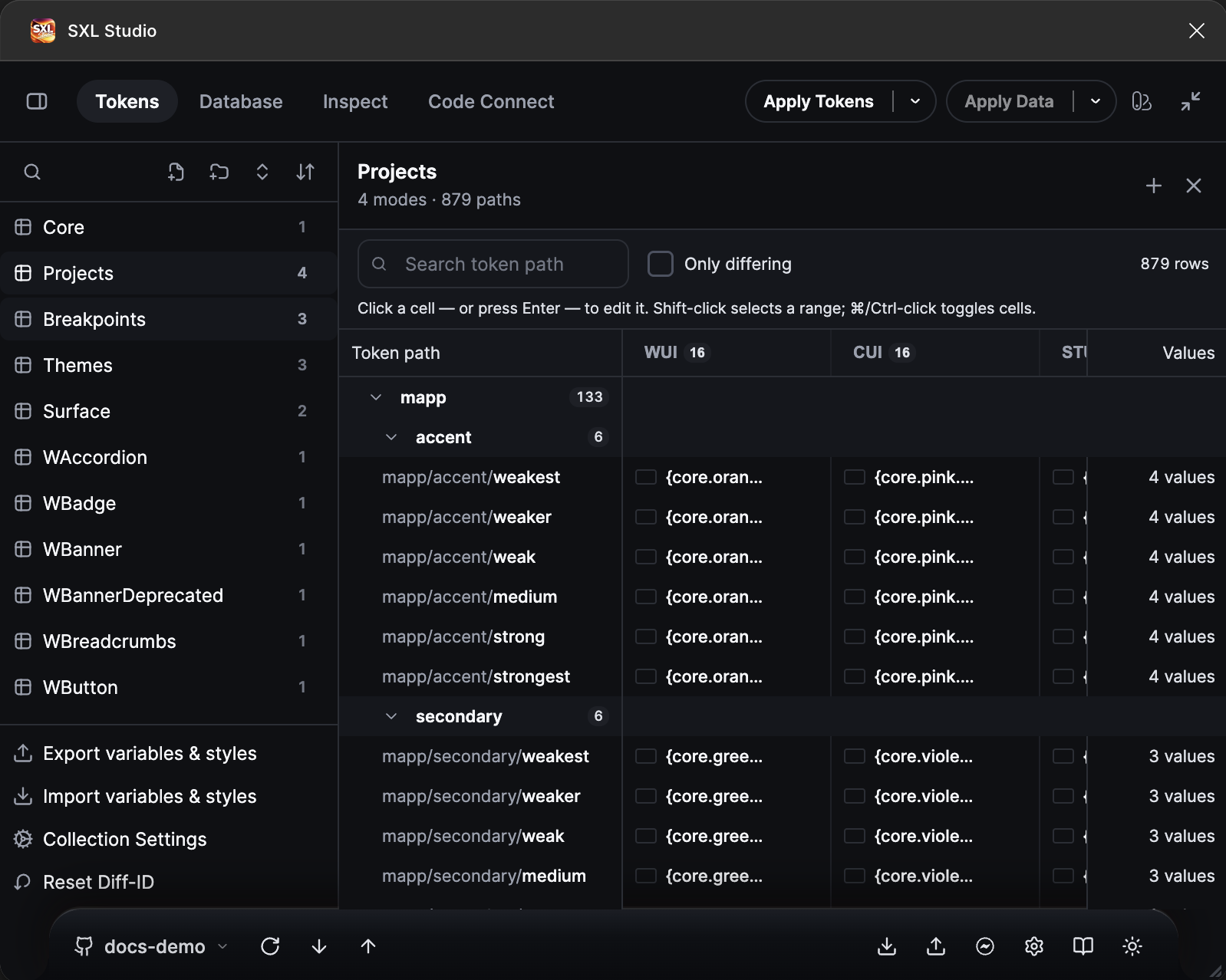
The matrix of the Projects collection: four modes in columns, token paths in rows, the differing-values counter on the right.
Your first edit in five steps
- In the Collections section click a collection.
- Find the token row with Search token path or by expanding groups.
- Click the cell of the mode you need and enter a value: a number, a string, a
{group.token}reference or an expression. - Press Enter. A preview appears: which file and which mode the write goes to.
- Confirm. The file is saved and the cell updates.
Opening the view
In the Tokens tab, open the Collections section of the left sidebar. It lists every collection declared in config.json, with its name, its mode count, and an off badge when the collection is disabled.
Click a collection to open its matrix. The list is a tree with one tab stop, so you can also move through it with the arrow keys and activate the focused collection from the keyboard.
If there are no collections, the sidebar shows No collections yet — add them in Collection Settings (config.json).
If the sidebar search field has text when you open a collection, the matrix jumps straight to the first matching token path in an enabled file of that collection: the ancestor groups expand and the row is focused. With an empty search field the matrix opens at the top.
If the collection stops being declared in config.json while the view is open, the matrix is replaced by a message saying so.
The header and toolbar
The header shows the collection name, a subtitle of the form 3 modes · 412 paths, a close button, and a + button that adds a token to the collection. When the collection is disabled, the + button is off and its tooltip reads This collection is disabled and read-only.
The toolbar holds:
- Search token path — matches the token path only, with the same fuzzy matcher as the token tree. Values are never matched.
- Only differing — keeps rows whose modes disagree on the authored value, or whose token is missing from at least one mode.
- a selection counter reading
12 cells in 3 modes, hidden when 0 or 1 cell is selected; - a row counter reading
41 of 412while a filter is active, or412 rowswhen it is not; - a status line. By default it reads Click a cell — or press Enter — to edit it. Shift-click selects a range; ⌘/Ctrl-click toggles cells. When an action is blocked, the refusal replaces it for six seconds and the refused cell is highlighted.
Reading the matrix
Columns are modes
There is one column per mode the collection declares, in config.json order, plus a pinned Token path column on the left and a Values column on the right.
A column contains only the files the mode marks enabled. Files marked source are left out on purpose: they resolve aliases, but they are not apply targets and cannot be written from this view.
A mode may enable several files. The header then shows a numeric badge with the file count, and the tooltip names the resolved file paths. When the geometry cannot be proved, the tooltip states the exact problem instead — ambiguous config: …, missing file: …, invalid token JSON: …, or no enabled file. A disabled mode carries an off badge.
Values inside one multi-file mode are flattened last-wins.
Click a mode name to open that mode's token file in the normal editor. With several enabled files this opens the first file of the column; the tooltip names it.
Column widths are draggable and are stored per collection, keyed by the mode name.
The Values column reads 2 values per row and is dimmed when the row has one distinct value or fewer. Right-click it to get the row menu.
Rows are token paths
There is one row per token path — the union of leaf paths across all the collection's mode files. Rows keep the order the files author them in. They are never sorted alphabetically.
Paths are slash-separated. A dot inside a key is not a separator, so spacing/0.5 is one segment, not two.
The path cell dims the group prefix and emphasises the leaf name, indented by depth. Its tooltip is the full path.
Cells
A cell shows the authored $value, verbatim. Aliases are shown, not resolved: {brand.primary} stays {brand.primary}. Strings are shown raw, numbers and booleans are stringified, objects and arrays are shown as JSON, and text is truncated at 120 characters.
A colour swatch is drawn for a literal colour — #rgb, #rrggbb, #rrggbbaa, rgb(), rgba(), hsl(), hsla(). For an alias whose effective type is colour, the swatch is a per-column preview only.
A cell in a mode that does not author the path is a gap. It is drawn as —. That is a UI state; it is never written to JSON.
Editable cells get a text cursor, a hover highlight and a small link button. Non-editable cells are locked, and their accessible description states the exact reason.
Group headers
A group header is inserted wherever the group changes from the previous row, in authored order. It shows a disclosure chevron, the last path segment, and the number of tokens under it, nested ones included.
A group header spans the path column and runs flat across the mode track. A group has no per-mode value, so it has no cells.
Collapse state is stored per collection and survives a reload. Collapsing a group does not change the row counter — that counter reports the filter, not the fold.
Editing a value
Click a cell to select it and open the editor. From the keyboard, focus a cell and press Enter or F2, or start typing: a printable character opens the editor seeded with that character and replaces the value, as in a spreadsheet.
Every cell kind uses the same plain text field. Literals, aliases, forward references and math are all typed into it.
What you can type
The text is parsed against the destination cell's own effective $type — its own type or the one it inherits from its group. The type is never guessed from the current $value.
| You type | Accepted when |
|---|---|
| A number, optionally with a unit | The type is numeric. Units are px rem em % pt ms s vw vh vmin vmax ch ex cm mm in pc. number accepts no unit; duration accepts none, ms or s; opacity accepts none or %; other numeric types reject ms and s |
| A colour literal | The type is a colour type and the literal parses as a colour |
true or false | The type is boolean |
| Any text, including empty | The type is a string type |
An alias such as {color.brand.primary} | The text contains at least one syntactically valid {token.path} run |
Math such as {base.scale} * 2 | The type is numeric — or the cell has no type and its previous value was a number |
| JSON | The cell is composite or has no known type. The new value must keep the previous shape: object for object, array for array |
A unitless value on a numeric cell is written as a JSON number. Anything else is written as a string.
An empty value on a non-string type is refused with Value cannot be empty. Braces that do not form a valid reference are refused with Value contains braces but no syntactically valid token reference.
Aliases and suggestions
The suggestion list opens when the caret sits inside an open {…}. No brace, no popup — typing a raw number or colour is never obstructed.
Three ways reach the same list: type {, press ⌘/Ctrl + K, or click the link button on the cell.
The list has two tiers. First, paths this collection authors, badged this collection. Then every path in the workspace. Matching is fuzzy and covers the path only, so bg al prim finds bg.alert.primary. Each row shows a type icon or a literal swatch, the path, and a value preview.
Candidates whose type is incompatible with the destination are filtered out. Candidates whose type is unknown stay in the list as forward references. The list is capped at 50 items.
↓ and ↑ move the highlight, Enter and Tab accept, Escape dismisses the list and keeps what you typed. Accepting inserts the path and puts the caret after the closing brace, which closes the list on its own.
A reference whose target type is known and incompatible is a hard refusal. A reference whose target cannot be resolved is accepted with a warning: the forward reference stays authored exactly as typed, a ! marker appears on the editor, and the warning is repeated in the preview.
Confirming the write
Nothing is written from the grid directly. Every operation — including a single-cell value edit — goes through the same plan, review and apply transaction. The preview only reads; it returns the before and after of every file it would change.
There are two confirmation surfaces:
- The compact inline strip. Used when the write touches at most 4 files and every selected cell is currently on screen. It reads
Write <value> to N cells in …, names the files, and states how many files it writes and how many it leaves unchanged. Focus lands on the primary button as soon as the preview is ready, so the whole gesture is type, Enter, Enter. Escape cancels. - The full review dialog. Used for anything larger or off screen. It lists every file in scope with a status and a message, shows per-file before/after diffs, counters, warnings and the reference report, and lists every blocker under Apply is off until this is resolved.
Both surfaces run the same transaction. The difference is presentation, not safety.
Leaving a single unchanged cell is navigation, not an operation: nothing is written and no preview opens. With two or more cells selected, an unchanged value still previews — it may be spreading that value deliberately.
All or nothing
If the cell you edit belongs to the current cell selection, the value goes to every selected cell in one transaction. Otherwise only that cell is written.
The whole selection is refused, before anything leaves the view, when:
- a cell has no proven exact target file;
- two selected cells resolve to the same file and path;
- the value cannot be parsed against the type of any one cell;
- a gap's row type cannot be resolved;
- no selected cell is writable at all.
Each of these messages ends with Nothing was written. The same rule holds on the plugin's main thread: an exact write blocks on invalid, conflicting and missing rows rather than applying part of the batch.
Writing into a missing cell
You can type a value into a — cell. That is allowed only when the row has one unambiguous effective $type shared by every existing cell in it. A row with no authored type, or with different types across modes, is refused.
If the mode has one enabled file, the destination is automatic.
If the mode enables several files, there is no provenance for a path that does not exist yet, so Choose files for missing cells opens with one row per path and mode. Pick an enabled file by its full path, or Skip this destination. Existing siblings, $type and filenames are not treated as ownership evidence. The value is validated before the chooser opens.
Skip is operation state only — it creates no token, marker or sentinel value in JSON. If every gap is skipped, nothing changes.
While you are editing
The draft is closed rather than allowed to write into something you can no longer see:
- if the file the editor opened on changes underneath — … changed while you were editing. Press Escape and open the cell again.;
- if the mode moved or was renamed — reopen the cell in its current mode before writing;
- if the edited row is filtered or collapsed away;
- if the colour picker's draft no longer matches the file, the mode or the owner.
Selecting cells, rows and columns
Cell selection and row selection are mutually exclusive. Picking a value cell clears the row selection, and picking a row clears the cell selection.
| Gesture | Result |
|---|---|
| Click a value cell | Selects it and opens the editor |
| ⌘/Ctrl-click a value cell | Toggles that cell in or out of the selection, and makes it the anchor. No editor |
| Shift-click a value cell | Selects the rectangle between the anchor and this cell, across rows and mode columns. No editor |
| Double-click a value cell | Opens the editor |
| Shift + double-click a value cell | Selects the whole row of cells, across every mode column |
| Click a token name | Selects that row and starts the inline rename |
| ⌘/Ctrl-click a token name | Toggles that row in the multi-row selection |
| Shift-click a token name | Extends the row range from the anchor over the visible rows |
| Click a group header or its chevron | Toggles collapse |
| Right-click a value cell | Opens the value menu. If the cell is outside the current selection, the selection collapses onto it |
| Right-click a token name or the Values cell | Opens the row menu. A right-click inside the current row selection keeps it |
| Right-click a group header | Opens the group menu and clears both selections |
| Drag a column edge | Resizes that column. Double-click the edge resets it |
⌘/Ctrl + A selects every cell of every visible row. Rows hidden by the filter and rows inside collapsed groups are left out on purpose.
There is no gesture that selects a whole mode column in one click. Select the top cell of the mode, then Shift-click its bottom cell.
On an editable colour cell the swatch is a button. It opens the colour picker on that cell, and Apply goes through exactly the same write path a typed value does — with twelve cells selected, one picked colour writes all twelve in one operation.
Any pointer gesture first commits an open draft. A refused draft, or an open preview, blocks the gesture until you resolve it.
Bulk operations
The operations live in three context menus: the token name cell (row operations), a value cell (cell operations), and a group header (group operations). Each menu opens with a header line stating the blast radius — how many rows and how many exact owner files are involved — or Blocked — plus the reason routing failed.
Create a token
Use Add token… in the row menu, or the + button in the header.
You pick the token type first, then fill in the standard token editor: path, value, description and extensions.
The path you type is normalised — both . and / become /. It is refused when it is empty, when a segment starts with $, when a segment contains { or }, when a token already exists there, when a group already uses that path, or when it would nest under an existing token.
Each mode gets one target. A single-file mode routes automatically. A multi-file mode opens Choose exact token files with one row per mode: an enabled file, or Skip. A disabled mode accepts only Skip. A mode that already has the path accepts only Skip. A mode whose file geometry cannot be proved offers Skip only.
The same value is written into every chosen file. If every mode is skipped, the operation asks you to choose at least one missing target mode.
One case cannot be skipped: a disabled mode that shares a raw file with a chosen enabled destination. Creating the token there would change the disabled mode too, so the operation names the shared files and stops.
Duplicate a token
Duplicate as… asks for a target path. The source is shown read-only, exactly as authored. The default suggestion is the first free <source>-copy, <source>-copy-2, and so on.
The target path uses the same validation as create, plus two rules: it must differ from the source, and it must sit outside the source, because a token cannot contain itself.
Each file duplicates its own subtree. Every mode file copies what it holds at the source path into the new path, so no theme ever receives another theme's values. The copy is a new token: structural ids are dropped and the resolved $type is carried over.
Disabled modes with separate files are skipped, and the dialog says which. If a disabled mode observes a file selected for writing — either as enabled or as a resolve-only source — the operation stops before preview or write. This prevents a change made through an enabled mode from silently changing the disabled mode.
No aliases are rewritten. A duplicate creates a new path, and nothing pointed at it before.
Rename a token
There are two entry points: click the token name in the path cell for the inline rename, or use Edit token fields… to rename and edit metadata together.
Every physical owner of the path across every enabled mode must be proved, or the rename is blocked. A disabled mode that authors or observes one of the affected files blocks the rename: enable that mode, separate the shared file, or edit its files directly.
References are rewritten by default, across the whole workspace — token files and compositions, including files outside this collection. The rewrite is proved complete before anything is applied:
- if the reference graph knows a file holding a reference the plan does not cover, the rename is refused and asks you to re-run the preview;
- if the graph itself cannot read some files, the rename fails closed rather than reporting "no references found".
You can untick Update every reference to this token in the dialog form. The references are then left pointing at a path that no longer exists, and the plan carries an explicit warning saying how many references in how many files that is.
The review states the exact counts, including how many referencing files sit outside the selected scope.
On a fully successful apply, and only for files that provably held the token, the rename records an old path to new path intent. The next export renames the existing Figma variable in place instead of deleting and recreating it, so bindings survive. A refused or rolled-back rename records nothing.
Delete tokens
Delete token… — or Delete N selected tokens… — is the only multi-row operation and the only destructive one. Every selected row must route successfully before the plan opens; one ambiguous owner blocks all of them.
There is no separate form. The dialog opens on Checking what still references these tokens before anything is deleted, with the primary button disabled and Cancel deliberately live.
A delete is refused while anything still points at the path. The message says how many references in how many files still point at it, and asks you to delete or repoint them first. References that live inside the subtree being removed do not block — they go with it. The scan covers the whole workspace, and it fails closed when the reference graph cannot be proved complete.
Nothing is ever repointed automatically on a delete, and there is no "delete anyway".
Remove cells from selected modes
Remove this cell… — or Remove N existing cells… — removes the token from specific mode files only and leaves it in the others.
Gaps inside the selection are ignored and reported. If every selected cell is already a gap, nothing can be removed.
This operation always carries a standing warning: a partial mode row stays valid JSON. Variable export completes in one run, reports the missing values, preserves existing Figma values and leaves Figma-created defaults for new destinations.
The same reference-graph refusal as delete applies.
Group operations
Right-click a group header for Rename group…, Duplicate group as… and Delete group….
The operation always covers the complete group subtree, even while search shows only part of it, and every target file moves, copies or deletes its own authored subtree.
Rename group keeps nested token ids, types, descriptions, extensions and custom data, and updates descendant references, so the next export renames the existing Figma variables instead of replacing them. Duplicate group makes each file duplicate its own group subtree, so every nested token keeps that file's value and metadata.
A header is only operated on when it maps to a real raw JSON group. Two shapes are refused instead of guessed, and both are described in the next section.
Metadata
Edit token fields… opens the row metadata dialog: name and path, description, the token's own $type — including Inherit from group (remove own $type) — Figma variable scopes, and Code Syntax for Web, iOS and Android. $value is deliberately not part of this dialog. Fields that differ across the row's owner files show Mixed — unchanged and stay untouched until you edit them.
Edit metadata… on a value cell edits the description and the figma.modify colour-modifier chain for an arbitrary selection of exact cells. Mixed values stay unseeded and untouched until you act on them. The colour modifier editor appears only when every selected existing cell has effective type Color.
Keyboard shortcuts
The grid is a single tab stop. Inside it, the active cell moves with the keys below.
Grid navigation
These apply when focus is on the grid itself — not on a column resize handle — and no editor, inline rename, context menu or dialog is open.
| Key | What it does |
|---|---|
| ⌘/Ctrl + A | Selects every cell of every visible row, and clears the row selection |
| ⌘/Ctrl + K | Opens the token picker on the focused cell, seeded with { |
| ↓ | Moves the active cell down one row |
| ↑ | Moves the active cell up one row |
| → | Expands a collapsed group header. Otherwise moves one column right |
| ← | Collapses an expanded group header. Otherwise moves one column left |
| Shift + any arrow | Same move, but grows the selection rectangle from the anchor instead of replacing it |
| PageDown | Moves down one viewport of rows |
| PageUp | Moves up one viewport of rows |
| Home | Jumps to the first row, first column |
| End | Jumps to the last row, last column |
| Enter | Opens the editor on the active cell. On a group header with no cell selected, toggles collapse |
| F2 | Same as Enter |
| Space | Toggles collapse on a group header. On a token row, toggles that row in the multi-row selection |
| Shift + Space | On a token row, extends the row range from the anchor |
| Escape | Closes an open context menu. Otherwise clears the row selection and the cell selection, and does nothing when both are already empty |
| Shift + F10 | Opens the context menu for what is focused: group header, value cell, or row |
| Any printable character | Opens the editor on the active cell seeded with that character, replacing the value |
An unshifted arrow replaces the cell selection with the cell it lands on — that is how you escape a large selection. Moving the active cell does not clear the row selection, so alternating ↓ and Space builds a multi-row set.
Inline cell editor
| Key | What it does |
|---|---|
| ↓ / ↑ | Moves the suggestion highlight, only while the list is visible. Otherwise the caret moves normally |
| Enter | Accepts the highlighted suggestion. Otherwise commits, and moves focus down one row if there was nothing to write |
| Tab | Accepts the highlighted suggestion. Otherwise commits, and moves to the next editable cell in the row |
| Shift + Tab | The same, to the previous editable cell in the row |
| Escape, list open | Closes the suggestion list and keeps the typed text |
| Escape, list closed | Cancels the edit, discards the draft, and returns focus to the grid |
Leaving the input commits it. A commit that is refused keeps the editor open.
Value dialog
Reached from the value menu with exactly one cell selected.
| Key | What it does |
|---|---|
| ↓ / ↑ | Moves the suggestion highlight, only while the list is visible |
| Enter | Accepts the highlighted suggestion. Otherwise previews the change |
| Tab | Cycles inside the dialog. It never reaches the grid behind it |
| Escape, list open | Closes the suggestion list |
| Escape, list closed | Closes the dialog without writing |
The dialog's input does not commit on blur, and Preview is disabled while the text is unchanged.
Inline rename of a token name
| Key | What it does |
|---|---|
| Enter | Commits the rename and opens the review |
| Escape | Cancels the rename and discards the draft |
Leaving the field commits it. Every key stays inside the field, so typing a new path never triggers the grid's type-to-edit.
Column resize handle
The handle is focusable with Tab.
| Key | What it does |
|---|---|
| ← | Narrows the column by 8 px |
| → | Widens the column by 8 px |
| Shift + ← / → | Steps by 32 px |
| Home | Resets the column to its derived default width |
What Escape closes
Escape always closes the innermost thing first:
- the suggestion list, keeping the typed text;
- the inline editor, cancelling the edit;
- the value dialog, writing nothing;
- the inline rename field;
- any bulk dialog, route chooser or metadata dialog, writing nothing;
- the compact confirmation strip, cancelling the write;
- the context menu;
- the row and cell selections, when nothing else is open.
With nothing open and nothing selected, Escape does nothing.
What Collections refuses to do, and why
The view refuses rather than guesses. Each refusal is shown for six seconds in the toolbar status line and on the refused cell, or as a blocker in the review.
| Situation | What happens |
|---|---|
| A cell has no proven exact target file | The whole selection is refused. Nothing is written |
| Two selected cells resolve to the same file and path | Refused — collapsing one would no longer submit the exact selection you made |
| A path is authored in two files of the same mode | Refused. Remove the duplicate before editing it here |
| One display path maps to different raw structural addresses | Refused. Rename the ambiguous key in the file first |
| A mode's config key resolves to zero or several files, or the file is not a JSON object | That destination is locked, and the message lists the full candidate paths |
| A mode or the collection is disabled | Read-only. A selection that includes a disabled column refuses the whole write |
A gap's row has no single effective $type | Refused. Choose a type explicitly before defining a gap |
A group header is only a visual prefix — a raw key contains / | No group operation touches it. Rename the ambiguous key in the file first |
| A group is authored in two concern files of one mode | Refused. Move it into one concern file before changing the whole group |
A write would touch a file observed by a disabled mode as enabled or source | Refused before preview. Enable the mode or separate the shared file |
| A delete or cell removal, while references still point at the path | Refused. Delete or repoint the references first |
| The reference graph cannot read some files | Rename and delete fail closed instead of reporting "no references found" |
| Files, config or geometry changed after the preview | The plan goes stale and Apply turns off. Preview again |
| Ownership changed while a dialog was open | Cancel and reopen the operation |
Apply is on only when there is no engine refusal, the plan is not stale, no row is missing, conflicting, invalid or stale, the summary agrees with the row list, and at least one row is ready. Every blocker is listed under Apply is off until this is resolved.
If a write fails part-way, the whole batch runs inside one document lease, every target file is marked Git-dirty before the first byte is written, the loop stops at the first failure, and the files are restored in reverse order with each restore proved by a readback. You will see one of:
- Bulk edit applied to N file(s);
- Nothing to apply — no file changed.;
- Token files changed since the preview — nothing was written. Preview again.;
- Bulk edit failed — every file was restored, nothing changed.;
- Bulk edit failed and could not be undone — N file(s) may still hold the new content. Reload the plugin and check Git. In this case further plugin document writes are blocked until you reload the plugin.
Limits
- There is no undo. Recovery after an applied write is through Git Sync.
- Values are never resolved. A cell shows the authored value. Colour swatches for aliases are a preview convenience only.
- Search matches paths only, never values.
- Only
enabledfiles appear. Files markedsourceare invisible here and can never be written from this view. - A mode header opens the first file of that mode. With several enabled files the badge shows the count and the tooltip lists them all, but the click opens one.
- ⌘/Ctrl + A and Shift-ranges cover visible rows only — filtered-out rows and rows inside collapsed groups are excluded.
- The row counter ignores collapsed groups. It reports the filter.
- A file that lists the same group in two places renders two headers. Both carry the same group path, so collapsing one collapses the other.
- A dot in a key is not a separator. An existing path is carried exactly as authored; a path you type is normalised. The rename and duplicate forms show the normalised form under the input so this is visible.
- A group split across two concern files of one mode cannot be renamed, duplicated or deleted as a group. Consolidate it into one file first.
- A disabled mode with separate files is skipped. Any write is blocked when a disabled mode observes the affected physical file as
enabledorsource. - Unresolved references are allowed. A typo in a path is accepted with a warning, not refused.
- Math works on numeric types only, and only when the cell has an effective
$typeor a previous numeric value. - Alias suggestions are capped at 50, and the workspace path list loads lazily. The first
{of a session may show collection paths before the workspace list lands. - Column widths and collapse state are keyed by mode name, per collection. Renaming a mode in
config.jsonloses its width; reordering modes does not. - A width override is clamped only when the layout is built, so a column that does not fit a narrow pane shrinks temporarily and returns to its authored width when the pane grows.
- A plain click on a value cell both selects and opens the editor. To select only, hold ⌘/Ctrl or Shift.
- A plain click on a token name starts an inline rename. Modifier-clicks are selection only.
- Rename and Edit token fields are unavailable with several rows selected — those operations carry exactly one path.
- Removing a cell leaves a partial row. It is valid JSON; variable export completes in one run and reports the preserved or Figma-created mode value.
- A JSON round trip normalises the file:
1.50becomes1.5, and integer-like keys move to the front of their group in ascending order. You see this in the before/after diff, and a semantically identical file is never written. - Detected indentation and the trailing newline are preserved. A minified file has no indentation to preserve, so its first real bulk edit formats it with two spaces; the preview shows that one-time diff.
Related pages
- Tokens tab: Overview
- JSON format: Token JSON format
- Modes: Mode switcher
- Export: Export Variables & Styles