UI overview
How the plugin window is organized: header tabs and buttons, the sidebar with the file tree, the editor, the footer with the data source, the synchronization window and the Dev Mode panels.
The plugin window has four zones: the header with tabs, the sidebar with the tree, the work area and the footer. The set of tabs depends on the Figma mode: Design Mode or Dev Mode.
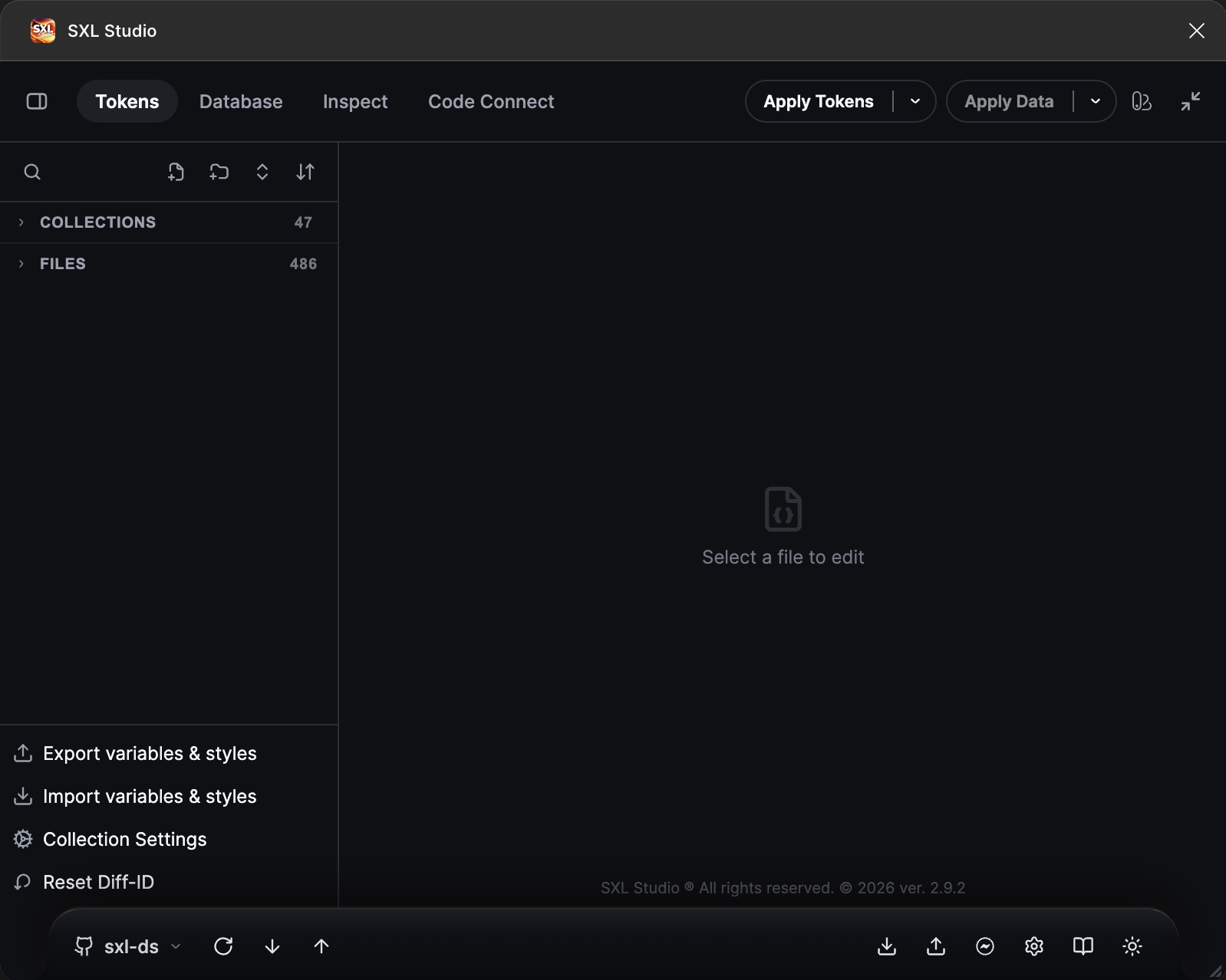
The plugin in Design Mode: the header, the collection and file tree, the editor area and the footer.
Header

The header in Design Mode: the sidebar toggle, four tabs, the Apply Tokens and Apply Data buttons, Mode context and window collapse.
| Element | What it does |
|---|---|
| The icon on the left | Shows or hides the sidebar |
| Tokens | Token files, collections, the editor, variable and style export and import |
| Database | JSON and CSV data sets, mappings to layers, instance generation |
| Inspect | Token bindings of the selected layer, instance recovery, library swap |
| Code Connect | Linking Figma components with code and Storybook |
| Apply Tokens and Apply Data | Apply tokens or data to the selection. The arrow on the right chooses the scope: Selection, Page or Document |
| The modes icon | Mode context: which collection mode to apply to the page or selection. See Modes |
| The arrows in the corner | Collapse the plugin into a compact bar and expand it back |
In a narrow window the tabs turn into a dropdown list.
Sidebar
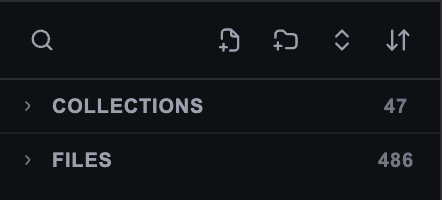
The top of the sidebar on the Tokens tab: search, new file, new folder, collapse all, sort.
The sidebar contents change with the tab:
- Tokens: the Collections and Files sections with item counts, token search, buttons to create a file and a folder, collapse or expand the tree, sort. At the bottom: Export variables & styles, Import variables & styles, Collection Settings and Reset Diff-ID.
- Database: the data, mapping and image trees with New Data, New Mapping, folder and upload buttons, and Generate instances at the bottom.
- Inspect: the tree of selected layers with binding marks, and Ghost Heal and Swap libs & variables at the bottom.
- Code Connect: the list of components linked to code and the Repository connection setting.
The border between the sidebar and the work area can be dragged, and the ← and → keys change the width when the border is focused.
Work area
Whatever is selected in the sidebar opens here: the visual or code editor of a token file, a data set or mapping editor, Inspect cards, the Code Connect form. While nothing is selected, a hint such as Select a file to edit is shown.
Footer

The footer with an active Git connection.
The data source and its operations are on the left, utility buttons on the right.
| Left | What it shows |
|---|---|
| The source chip | Local for Plugin Local, the branch name for Git, the profile name for Local Workspace. Click it to open the source and branch menu |
| Refresh, Pull, Push | Git only. A blue dot means there is something to fetch or send |
| State | For Local Workspace: Watching, Conflict, Reload |
| Right | What it does |
|---|---|
| Import from computer | Loads a folder with token and data JSON files |
| Export to computer | Opens the Download window with three tabs: All Data (a ZIP with all files), Tokens → Code (CSS, Swift, Kotlin and other formats), Export Asset (raster export of the selection) |
| Remote Connect | Connects the plugin to SXL Bridge for AI agents and IDEs. See Bridge utility |
| Sync settings | The synchronization window with the Git Sync, Local Workspace, Cross-file and Diagnostics tabs |
| Help & Documentation | Opens this site |
| Theme | Light, dark or system plugin theme |
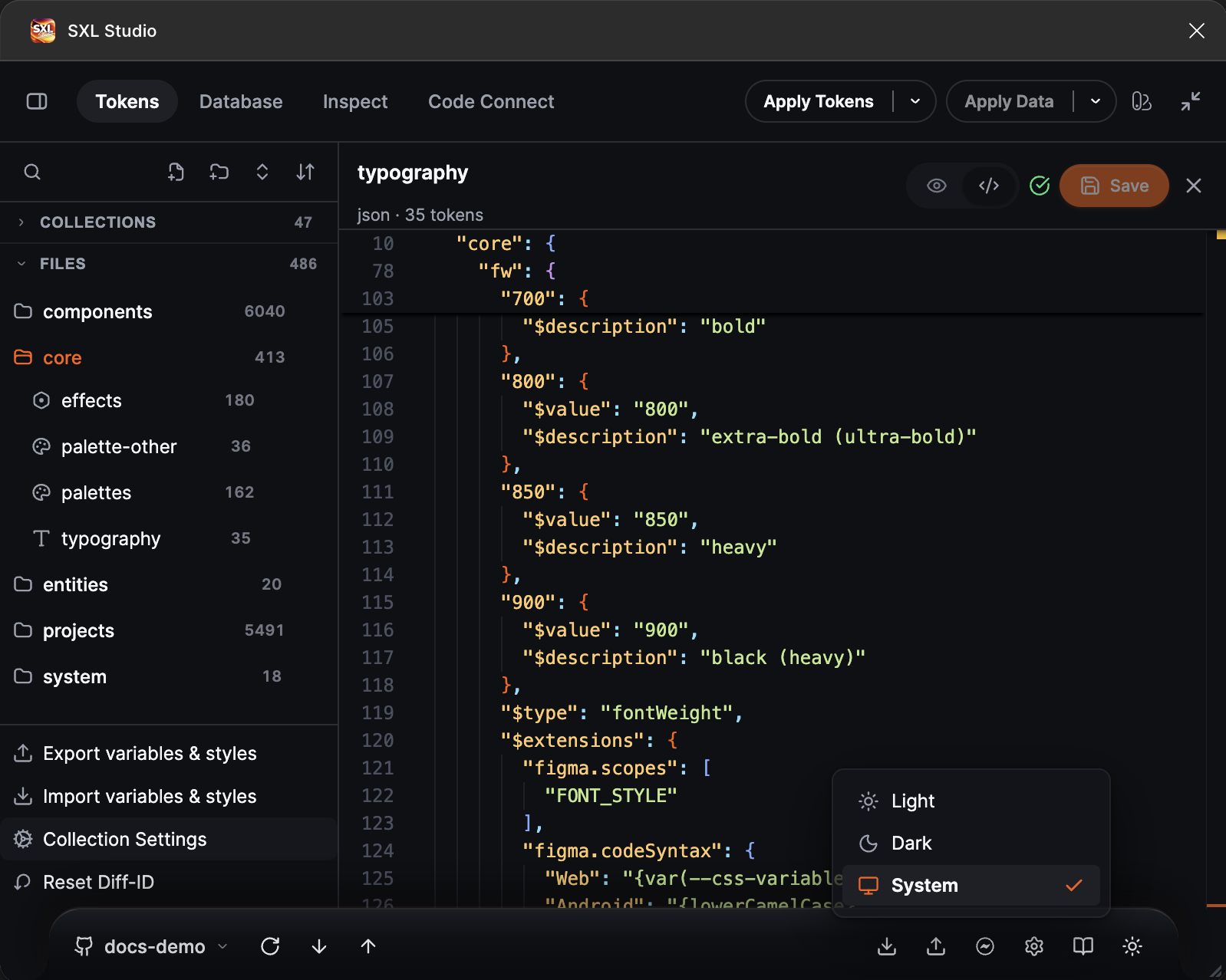
The Theme menu: Light, Dark, System.
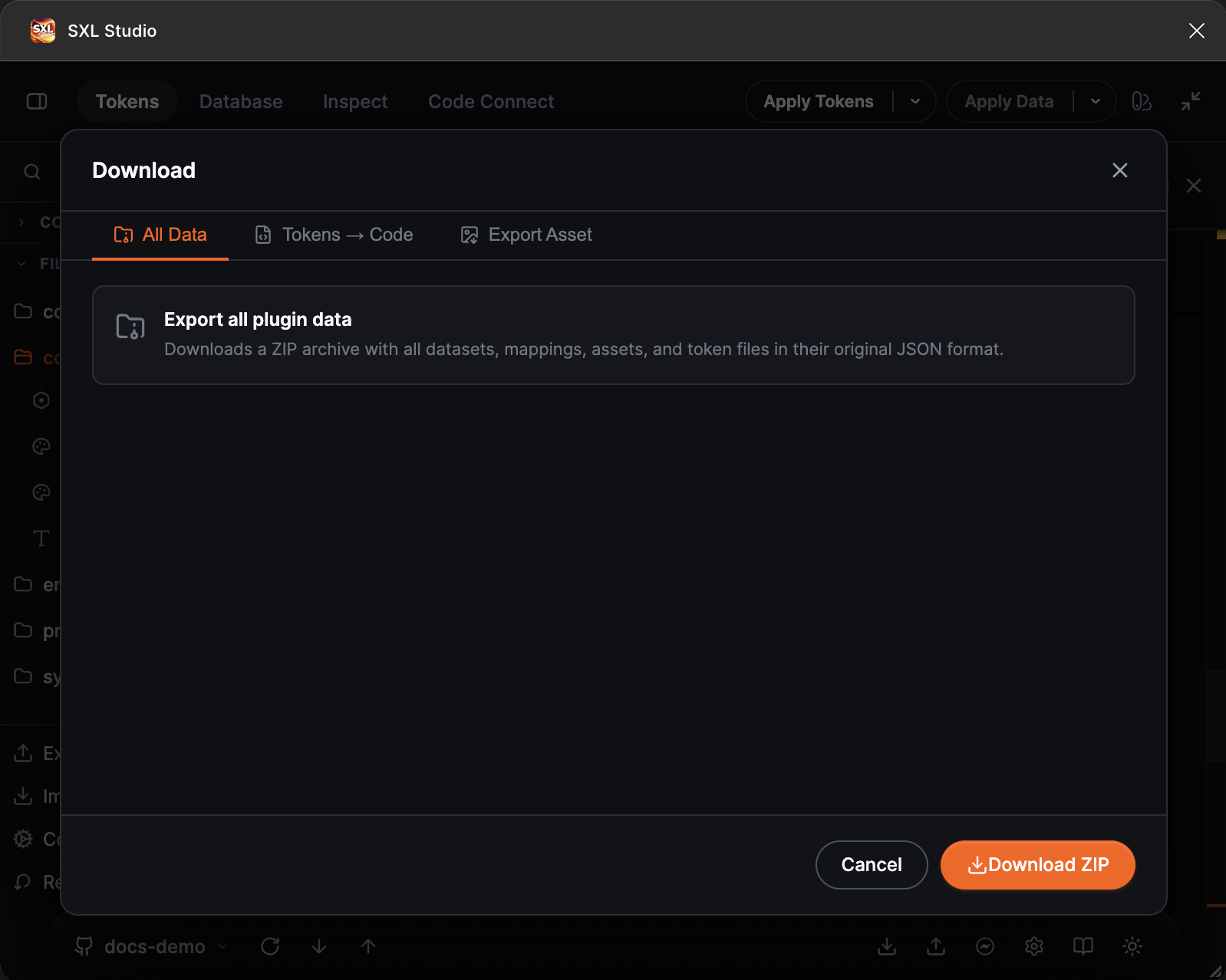
The Download window, All Data tab: all plugin data as one ZIP.
In a narrow window the right-hand buttons fold into the More actions menu.
The Synchronization settings window
The Sync settings gear opens a window with four tabs. It is described in Token sources and synchronization.
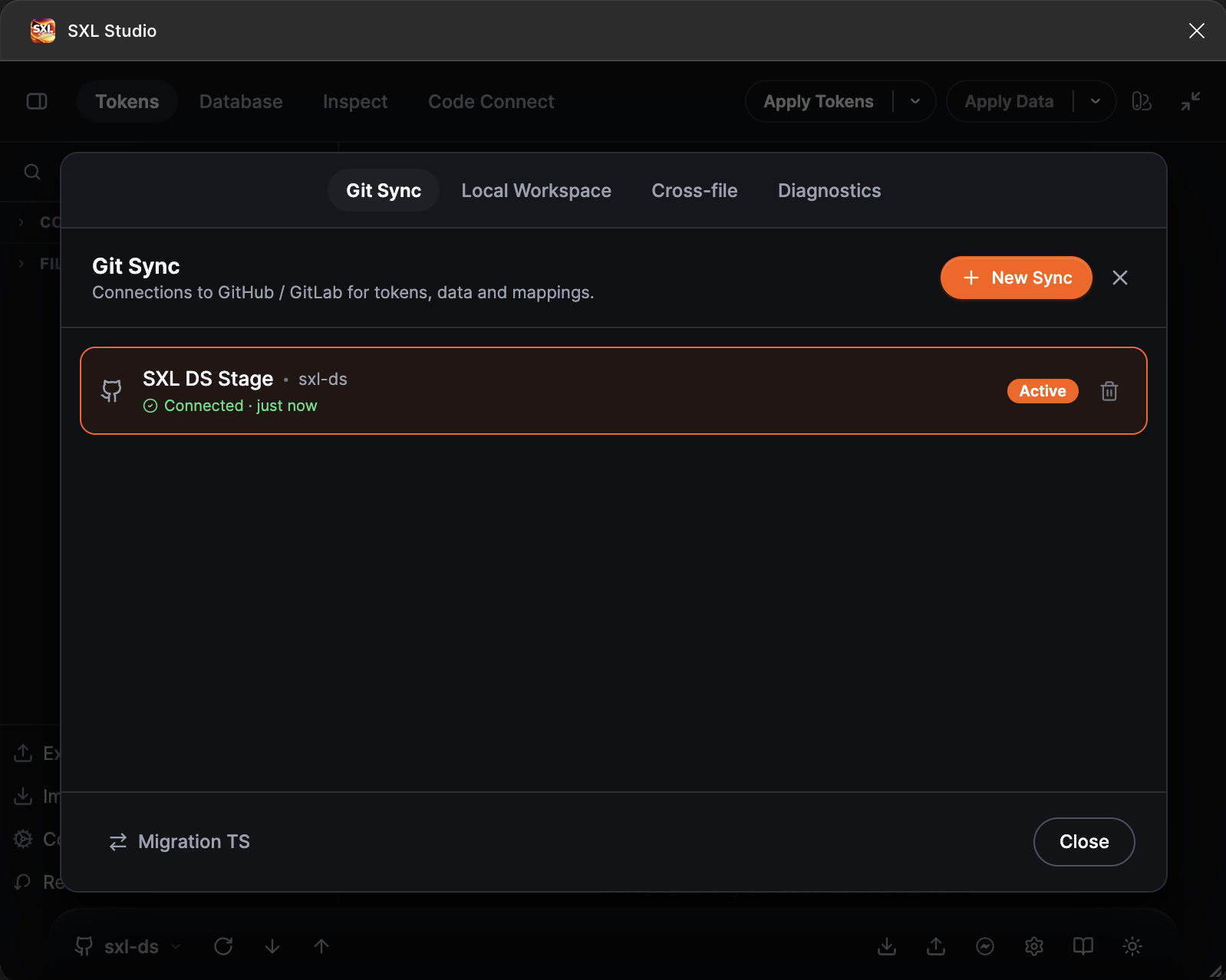
The synchronization window on the Git Sync tab.
Dev Mode
In Dev Mode the plugin panel has a different set of tabs:
| Tab | What it shows |
|---|---|
| Inspect | Name, library and properties of the selected component, token bindings, links to documentation and code, a block for AI agents with a ready prompt |
| Object model | The layer tree with sizes, spacing and a preview, and an image export button |
| Code | Generated code in the chosen language with the Decomposed and Raw switches and generation settings |
| Code Connect | The repository tree with .vue files, an editor and publishing to Git |
The code of the selected layer is also available in Figma's native Code panel without opening the plugin: choose an SXL Studio language there. More: Dev Mode.
Keyboard shortcuts
| Where | Keys |
|---|---|
| Token code editor | Cmd/Ctrl + S saves the file |
| Pull and Push windows | F7 and Shift + F7 jump between changes |
| Collections table | Cmd/Ctrl + A selects all cells, F2 edits, Space ticks a row, Shift + F10 opens the context menu |
| Database | Cmd/Ctrl + R or F2 renames, Delete deletes, Shift and Cmd/Ctrl select several files |
| Modal windows | Esc closes |