Collection modes
The Mode context menu in the Tokens header: previewing tokens in a collection mode and applying the mode to the selection, parent frame or page in Figma.
A Figma variable collection can have several modes: light and dark themes, projects, breakpoints. The Mode context menu in the Tokens tab header shows which mode of every collection is selected, switches the mode for previewing tokens in the plugin and applies it to Figma elements.
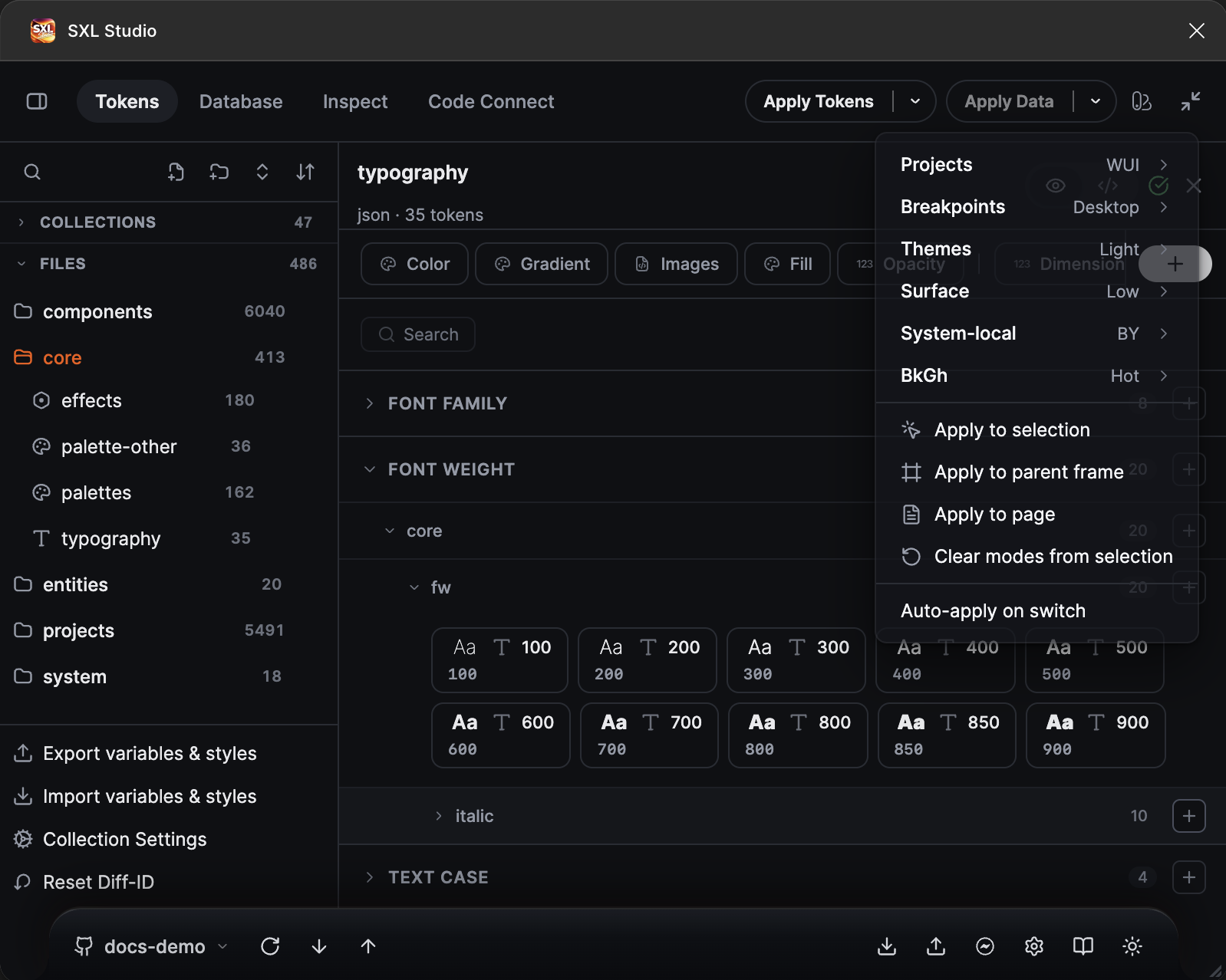
The Mode context menu: collections with their current mode, the apply actions and the Auto-apply on switch toggle.
If no collection has more than one mode, the menu says No multi-mode collections.
Preview in a mode
Choose a mode for a collection in the menu: token badges and tooltips in the editor recalculate for it, and the Figma canvas does not change. The chosen mode is remembered per Figma file.
Apply a mode to Figma
| Action | What it does |
|---|---|
| Apply to selection | Sets the chosen modes on the selected layers |
| Apply to parent frame | Sets the modes on the parent frame of the selection |
| Apply to page | Sets the modes on the current page |
| Clear modes from selection | Removes explicitly set modes from the selection; the layers inherit the mode from their parent again |
Modes are applied per collection, so you can set, for example, the dark theme and the mobile breakpoint at once.
Auto-apply on switch
The toggle at the bottom of the menu. Off by default: choosing a mode changes only the preview, apply it with the Apply to … actions. Turn it on to apply the chosen mode to the current selection immediately: handy when you want to flip through themes on a component and see the result on the canvas.
Where the setting is stored
The chosen preview mode and the Auto-apply on switch state are saved in the Figma file and shared by everyone who works in it.
If a mode is missing from the list
Only collections that are already exported to Figma and have more than one mode appear in the menu. Export the collection with Export variables & styles, then open the menu again. Modes are defined in the collection settings through config.json.