Data files & mappings
Complete reference for Database datasets and mapping JSON: supported formats, keys, expressions, directives, and practical examples.
Overview
This page is the schema reference for the three Database file types.
| File | Extension | Purpose |
|---|---|---|
| Dataset | .json / .csv | Content rows consumed by mappings |
| Asset | image | Reusable image applied to image-capable layers |
| Mapping | .map.json | Rules linking dataset keys to Figma layers (fields[]) |
Mapping editor
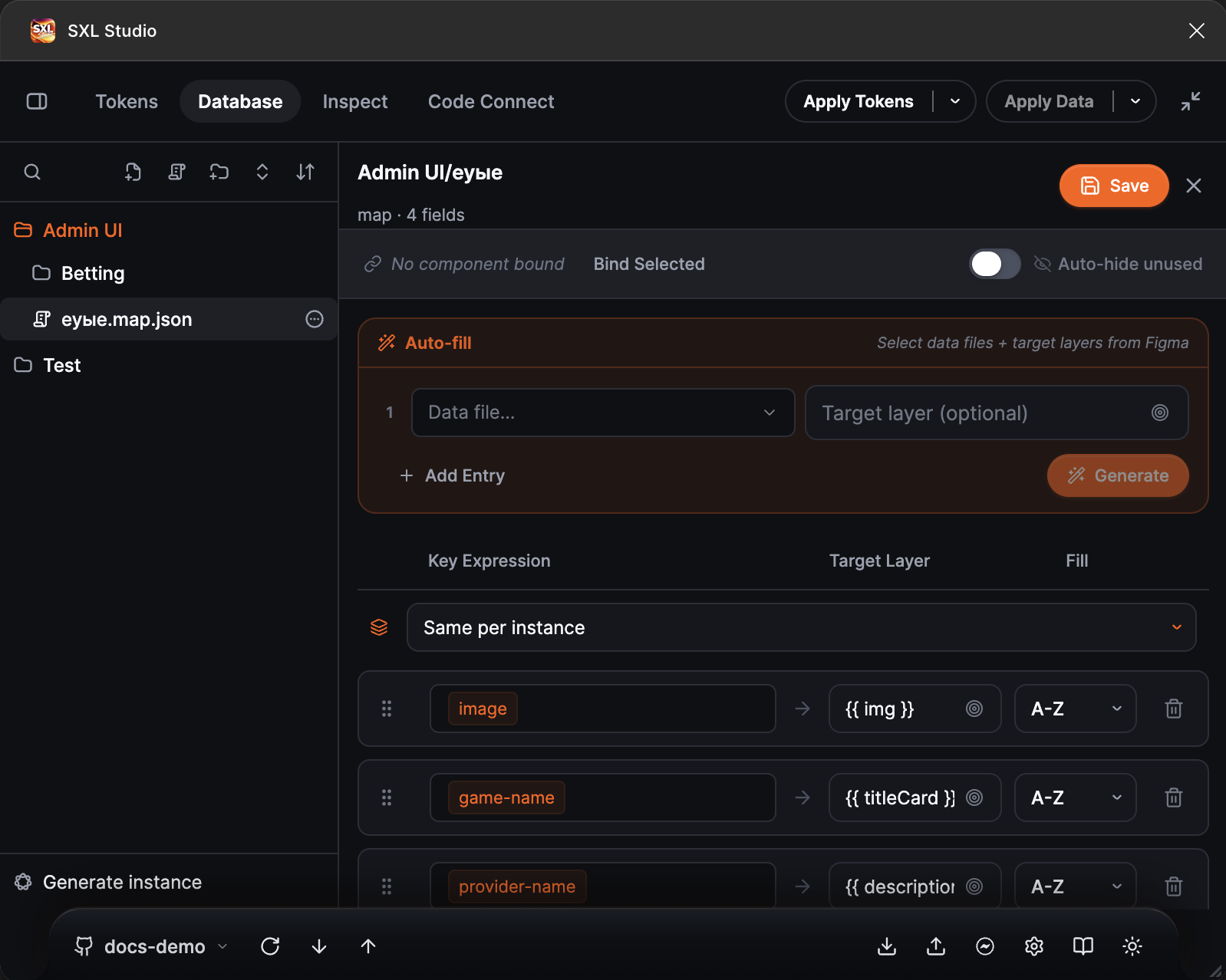
The mapping editor: the Key Expression, Target Layer and Fill fields, component binding, Auto-hide unused and the Auto-fill section.
- Add dataset file in the tree toolbar adds a row to the tree: type a file name with the
.jsonor.csvextension and press Enter, and the file opens in the editor. The file appears in the selected folder; folders are created with the Add folder button in the same toolbar. New mapping works the same way; the name gets.map.json. - In the mapping editor every field is a row with three columns: Key Expression (the data key, for example
[title]or[first] + [last]), Target Layer (the layer name; the picker button takes it from the Figma selection) and Fill with the row order A-Z, Z-A or Rand. - Above the fields you choose how rows are distributed between instances: Same per instance, Sequential (global) or Random.
- Bind Selected binds the mapping to the selected component, the Bound to: label shows its name and Unbind component removes the binding. Binding enables the template check in Generate and the Auto-hide unused toggle.
- The Auto-fill section picks fields from the keys of a data set: choose Data file…, optionally a target layer, and press Generate.
- Changes are saved with the Save button.
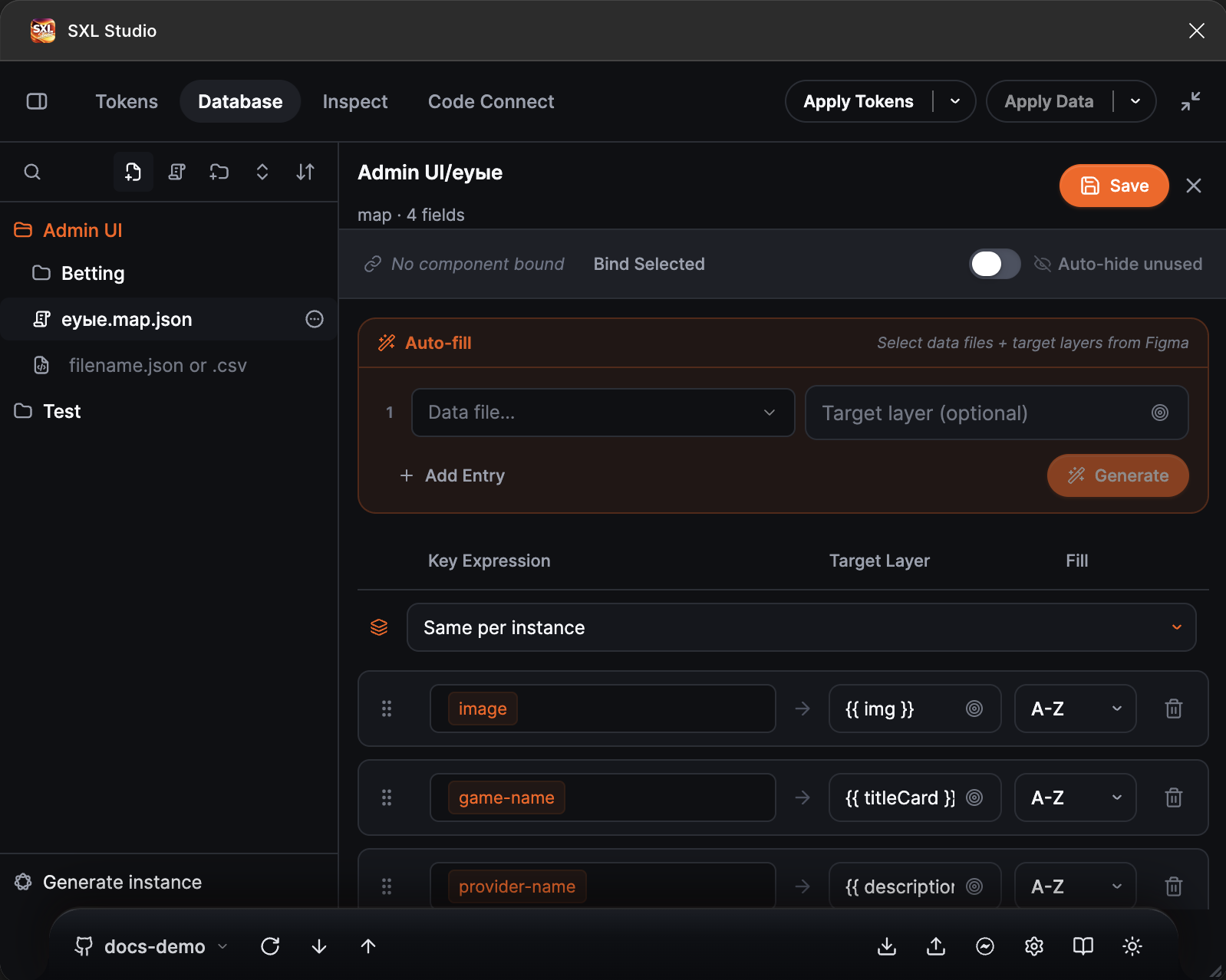
A new data file is created right in the tree: a name with the extension and Enter.
Dataset formats
Database supports two dataset formats:
- JSON
- CSV
A dataset can be local or Git-synced.
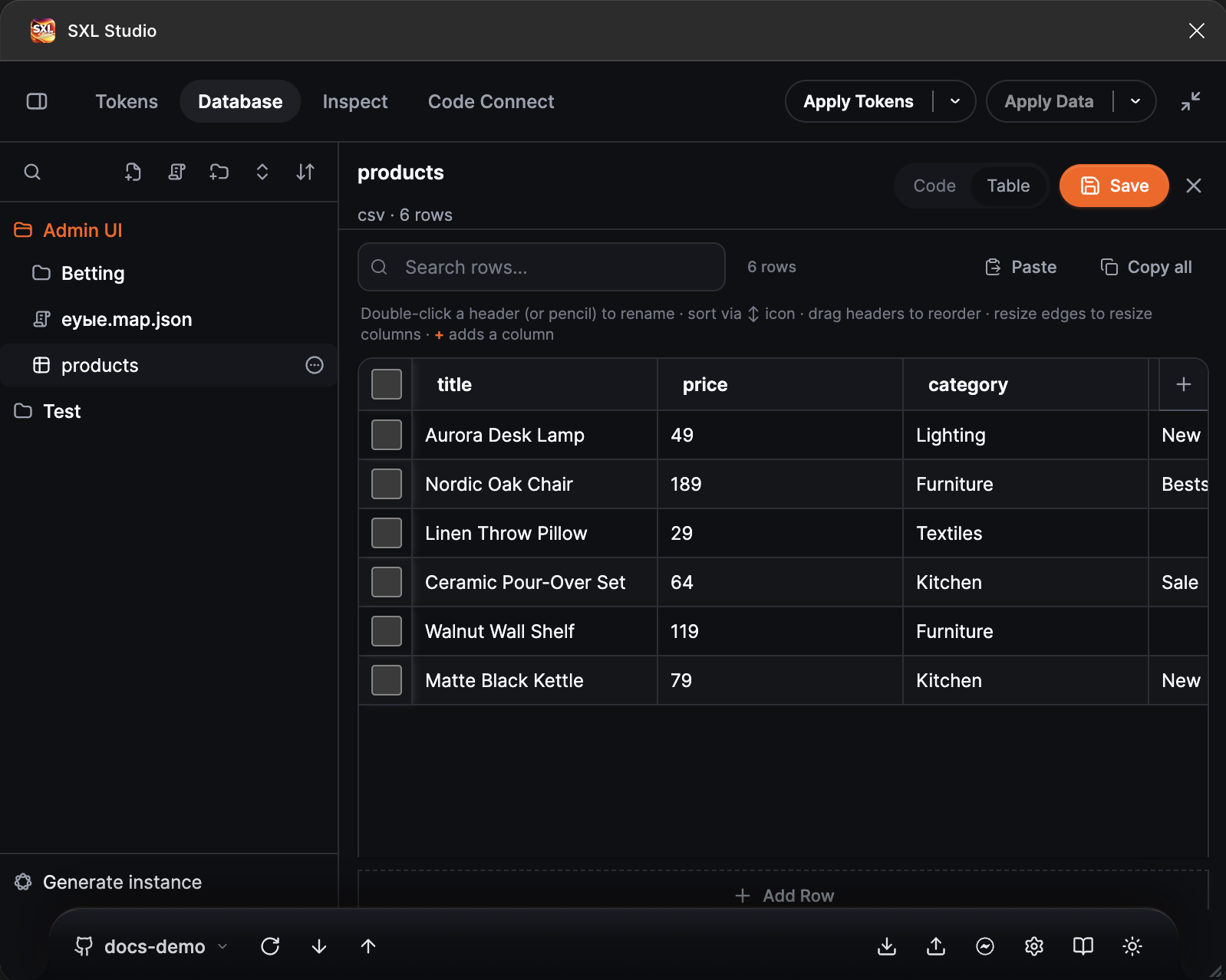
A CSV data set in Table mode: rows are edited in cells, columns are added with the + button, the Code / Table switch shows the same file as text.
In the data set editor Code shows the file as text and Table shows it as a table with a row search, Paste for inserting a table from the clipboard, Copy all and Add Row. A column header is renamed with a double click and columns are reordered by dragging. Changes are saved with the Save button.
JSON
Supported shapes:
- array of objects (recommended),
- single object (handled as one-row dataset at apply/generate time).
Example:
[
  {
    "title": "Nike Air Max",
    "price": 129.9,
    "badge": true,
    "user": { "name": "Anna" }
  }
]
JSON value resolution rules
When mapping resolves [path]:
- direct key is checked first (important for flat keys like
sport.name-ru), - then dot-path traversal is used (
user.name), - if an intermediate value is an array and no numeric index is provided, the first element is used.
For object values inserted into text, the plugin uses this priority:
ru → en → default → value → text → title → name → JSON string fallback.
CSV
CSV is parsed as header + data rows.
Rules used by SXL Studio parser:
- line 1 is header;
- minimum for parsed data is 2 lines (header + at least one row), otherwise result is empty;
- escaped quotes are supported (
""); - commas/new lines inside quoted values are supported;
- duplicate headers are renamed to
name,name_2,name_3, ...
Type conversion:
- numeric strings are converted to numbers;
- strings with leading zeros (like
001) stay strings; - empty strings stay empty strings;
- CSV values are not auto-cast to boolean by the CSV parser.
CSV editor modes
For CSV datasets, the UI provides:
- Code mode: raw CSV editing,
- Table mode: grid editing.
Table mode features:
- rename columns,
- add/delete/duplicate rows,
- add columns,
- drag columns to reorder,
- single-column sorting,
- search filter,
- copy/copy all,
- paste CSV from clipboard (new columns are added automatically),
- empty rows/columns are removed on save.
Assets
Supported upload formats:
- PNG, JPG/JPEG, GIF, WebP, SVG.
On upload, WebP/SVG are converted to PNG for local asset storage.
Image values in mapping can come from:
https://...URL,data:image/...URL,local-asset://<assetId>,- local asset name/path,
- Git file path.
HTTP URLs are rejected by image fetch logic. Use HTTPS URLs.
Mapping JSON schema (.map.json)
A mapping file is stored as JSON with $type: "maps".
Root keys
| Key | Type | Required | Description |
|---|---|---|---|
$type | "maps" | yes | Mapping file marker |
id | string | yes | Mapping ID |
name | string | yes | File name (usually ends with .map.json) |
createdAt | string | yes | ISO date |
updatedAt | string | yes | ISO date |
fields | FieldConfig[] | yes | Mapping fields |
folder | string | null | no | Tree folder path |
datasetId | string | no | Default dataset for fields |
targetComponentKey | string | no | Bound component key for Generate validation |
targetComponentName | string | no | Display name for bound component |
autoHideUnused | boolean | no | Enables post-apply auto-hide behavior |
order | "asc" | "desc" | "random" | legacy | Legacy compatibility key |
FieldConfig keys
| Key | Type | Required | Description |
|---|---|---|---|
id | string | yes | Field ID |
jsonPath | string | yes | Key Expression |
layerName | string | yes | Target Layer name/text |
fillStrategy | "asc" | "desc" | "random" | yes | Per-field row strategy |
datasetId | string | no | Per-field dataset override |
group | string | no | Logical group label |
groupFillMode | "same" | "global" | "random" | no | Cross-instance/group row distribution |
Key Expression reference
Base syntax
- Bracket path:
[title] - Dot path:
[user.name] - Multiple keys:
[first] [last] - Bare key (without brackets) is also accepted and treated as
[key]
Concatenation with +
[a] + [b] is treated as direct concatenation between placeholders.
Remove modifier
Use - (space-dash-space):
[status] - prefix_→ removesprefix_[code] - *-→ removes everything up to last-
Embedded placeholders in dataset values
After normal expression evaluation, the plugin also resolves embedded [path] inside resulting string values if the path exists in the same row.
Example:
- dataset value:
"Total [fts] (NP)" fts = 7.5- result:
"Total 7.5 (NP)"
Target Layer matching
A node is a target when either of these matches mapping layerName:
- node
name, - TEXT
characters.
Normalization used for matching:
- trim edges,
- replace NBSP with regular spaces.
Matching remains case-sensitive.
Dataset selection priority
For each field, dataset resolution order is:
field.datasetIdmapping.datasetId- auto-detection by expression keys against first row of datasets
- full key match preferred,
- partial match fallback.
Fill behavior
fillStrategy (field-level) — the Fill column in the editor
asc: forward order, A-Z in the editor,desc: reverse order, Z-A,random: random row, Rand.
groupFillMode (group-level) — the switch above the fields in the editor
same: its own row counter in every container, Same per instance,global: one shared counter across containers, Sequential (global),random: a random row on every group application, Random.
Directives reference
Directives are string values in dataset cells.
@prop: (component properties)
Syntax:
@prop:Property=value
@prop:Visible=true;Label=New
Notes:
- supports multiple props separated by
;, - escaped semicolon is supported as
\;, - applied to INSTANCE targets only.
@node: / @hide / @show
Supported node directives:
@hide→visible=false@show→visible=true@node:visible=true|false@node:opacity=0..1@node:locked=true|false
Notes:
- multiple node directives can be chained with
;, - for TEXT targets, visibility directives typically apply to the parent container.
@rows: and $visibleRows / $rows
@rows:3shows first 3 children and hides the rest on the target container.- Numeric values coming from expressions with
$visibleRowsor$rowsare also supported.
Note: this logic is skipped for native SLOT nodes.
Plain boolean values on INSTANCE targets
If the mapped value is boolean-like (true/false/1/0/yes/no/on/off) and target is INSTANCE, the plugin sets the first BOOLEAN component property on that instance.
Example mapping file
{
  "$type": "maps",
  "id": "map_cards",
  "name": "cards.map.json",
  "createdAt": "2026-05-27T10:00:00.000Z",
  "updatedAt": "2026-05-27T10:05:00.000Z",
  "datasetId": "ds_products",
  "targetComponentKey": "2b8b2...",
  "targetComponentName": "WProductCard",
  "autoHideUnused": true,
  "fields": [
    {
      "id": "f_title",
      "jsonPath": "[title]",
      "layerName": "product-title",
      "fillStrategy": "asc",
      "group": "card/content",
      "groupFillMode": "same"
    },
    {
      "id": "f_badge",
      "jsonPath": "@prop:Visible=[badge]",
      "layerName": "badge",
      "fillStrategy": "asc"
    }
  ]
}
Related pages
- Operations and runtime behavior: Apply & Generate
- General Database workflow: Database overview