Token sources and synchronization
Where the plugin reads tokens and data from: Plugin Local, Git Sync (GitHub / GitLab) and Local Workspace. How to switch between sources and where to start.
SXL Studio keeps tokens, compositions and Database data in JSON files. The source defines where those files live and who else sees your changes. There are three sources, and you can switch between them at any time without losing data.
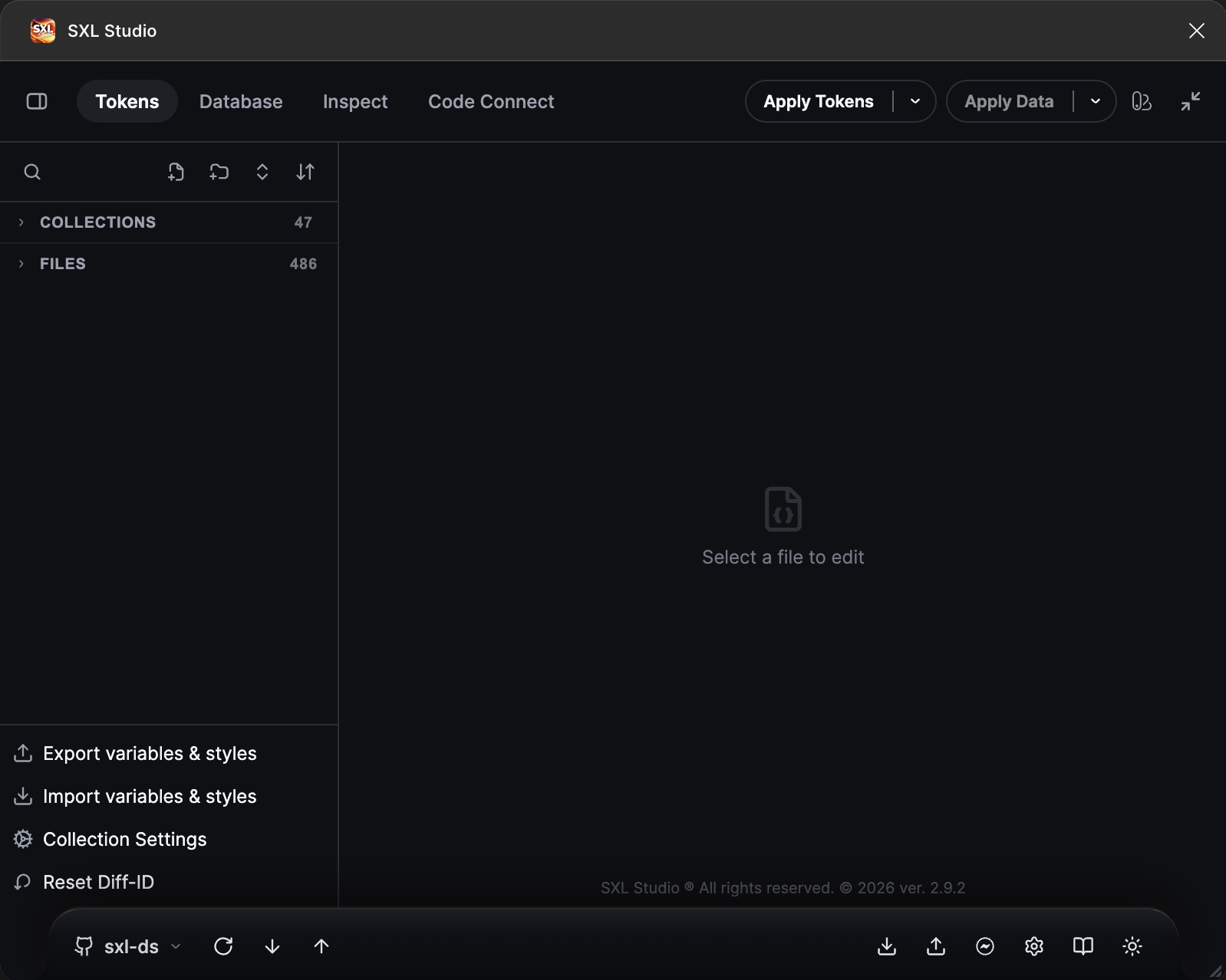
The Tokens tab with an active Git connection. The footer shows the source on the left, the sxl-ds branch, next to the Refresh, Pull and Push buttons.
Three sources
| Source | Where the files live | Who sees the changes | What you need |
|---|---|---|---|
| Plugin Local | Inside the plugin, on this computer | Only you | Nothing. This is the default after installation |
| Git Sync | In a GitHub or GitLab repository | The whole team after a Push | A Personal Access Token from the provider |
| Local Workspace | In a repository folder on your disk | You and your code editor, the team after a commit from a Git client | A running SXL Bridge |
Plugin Local is good for trying the plugin or working alone. Load files with the Import from computer button in the footer and save them with Export to computer.
Git Sync is the main mode for a team. A designer changes tokens in the plugin and presses Push, developers get a commit in the repository. Developers change JSON in code, the designer presses Pull, and the designs update. The plugin talks to the provider through its REST API with an access token, so you do not need git on your computer.
Local Workspace is for people who edit tokens both in the plugin and in an IDE on the same machine. The plugin reads and writes files directly in the repository folder through SXL Bridge, watches the folder for changes and warns about a conflict with an unsaved draft in the editor.
A Git connection also has the Local Storage option: heavy token and data files are kept on disk through Bridge instead of the plugin's internal storage. Large projects need it, see Local Storage (Bridge).
How to tell which source is active
Look at the chip on the left of the plugin footer:
- Local with a monitor icon: Plugin Local.
- A branch name with a GitHub or GitLab icon: Git Sync. Next to it are Refresh, Pull and Push; a blue dot on Pull or Push means there is something to fetch or send.
- A profile name with a disk icon: Local Workspace. Its state is shown next to it: Watching (the plugin watches the folder), Conflict, Reload or Switching….
How to switch the source
Click the source chip in the footer to open the menu.
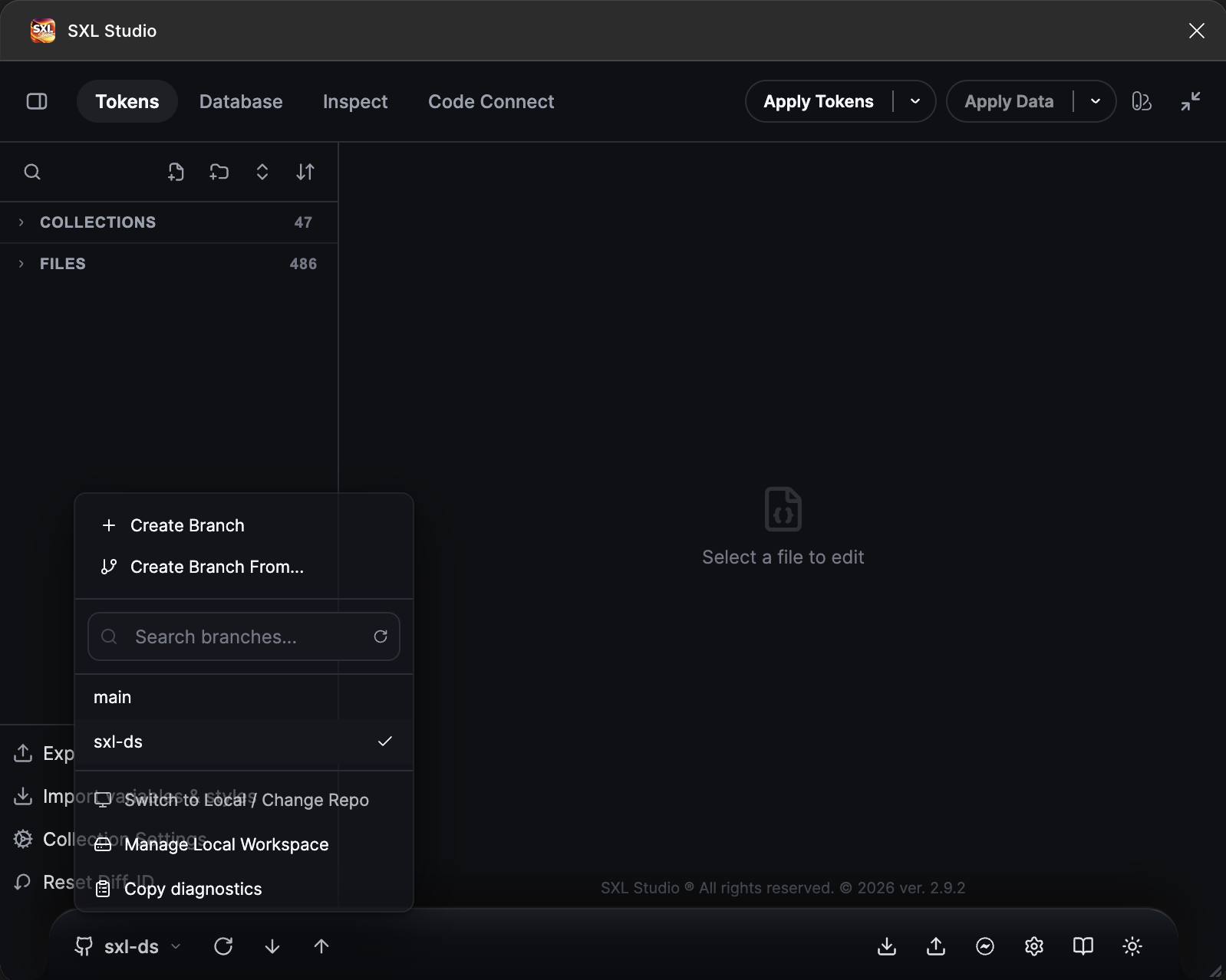
The source menu with an active Git connection: branches, branch search, switching to Local, Local Workspace management and diagnostics copy.
- From Git Sync: Switch to Local / Change Repo returns to Plugin Local and opens the connection list; Manage Local Workspace opens the Local Workspace profiles. Branch work lives here too: Create Branch, Create Branch From..., branch search and the branch list.
- From Plugin Local: the menu lists saved Git connections and Local Workspace profiles, pick the one you need.
- From Local Workspace: Use Plugin Local and Use Git · connection name.
Switching to Git checks the connection first. If the repository is unreachable because of the network, the switch still happens; if the connection is misconfigured, the plugin stays on the current source and shows the reason.
While an editor has an unsaved draft, switching away from Local Workspace is blocked: save or discard the draft first.
The Synchronization settings window
The Sync settings gear on the right of the footer opens a window with four tabs:
| Tab | Purpose |
|---|---|
| Git Sync | GitHub / GitLab connections, creating and testing a connection. See Connecting a repository |
| Local Workspace | Local folder profiles and Bridge settings. See Local Workspace |
| Cross-file | Copy variable values from another Figma file. See Cross-file Sync |
| Diagnostics | Check connections and Bridge, collect a log for support. See Diagnostics |
Where to start
- Create a Personal Access Token at your provider: GitHub or GitLab.
- In the plugin open Sync settings → Git Sync → New Sync. Fill in the repository, branch, Tokens Path and Data Path, paste the token and press Test connection. If the check finds inaccuracies in the paths or branch, the Fix button corrects them. Press Save. Details: Connecting a repository.
- Press Pull in the footer to load tokens and data from the repository.
- Work with tokens. Send changes with Push, fetch other people's changes with Pull. Details: Pull, Push and branches.
- For a large project enable Local Storage in the connection: Local Storage.
- If you also edit tokens in an IDE, set up Local Workspace.
What is synchronized
| Repository folder | Contents |
|---|---|
| Tokens Path | Token and composition JSON files, config.json with collection settings, and the service file diff-id.<file key>.json that links tokens to the variables and styles of a specific Figma file. Do not edit it by hand |
| Data Path | JSON and CSV for Database, mappings, images |
| Code folder | Dev Mode only: the source folder for the .vue editor and Code Connect |
The plugin reads and writes only these folders and leaves the rest of the repository alone.
Supported providers
- GitHub: github.com and GitHub Enterprise Server. For Enterprise put the server address into Enterprise URL.
- GitLab: gitlab.com and self-hosted instances, the address also goes into Enterprise URL.
Local Storage (Bridge)
The plugin's internal storage in Figma is limited to about 5 MB. When you have many tokens and data files, enable Local Storage in the connection form: heavy files are kept on disk through SXL Bridge while the plugin keeps working as usual. Bridge must be running on port 37830. Installing Bridge, the cache folder, the Open button and the auth token are described on the Local Storage page.
If something does not work
| What you see | What to do |
|---|---|
| A red error about the repository or branch when the plugin starts | Open Sync settings, select the connection and press Test connection. The report shows what is wrong, and Fix corrects the paths and branch |
| Pull and Push are disabled | Make sure the Git source is active, not Plugin Local or Local Workspace. The footer chip must show a branch |
| The message "Remote repo is too large" | The provider returned an incomplete file listing. Narrow Tokens Path and Data Path down to the folders you need |
| You need to send a report to support | Diagnostics tab → the diag command → Copy log. Access tokens never appear in the report |