Local Workspace
Working with tokens directly in a repository folder on disk: the profile, Bridge, activation, watching for changes, conflicts with an editor draft and going back to Git.
Local Workspace makes a repository folder on your computer the token source. The plugin reads and writes files directly on disk through SXL Bridge, while you commit and push with your usual Git client or IDE. It is the mode for people who edit tokens both in Figma and in code on the same machine: changes from the code editor appear in the plugin right away, without a Pull.
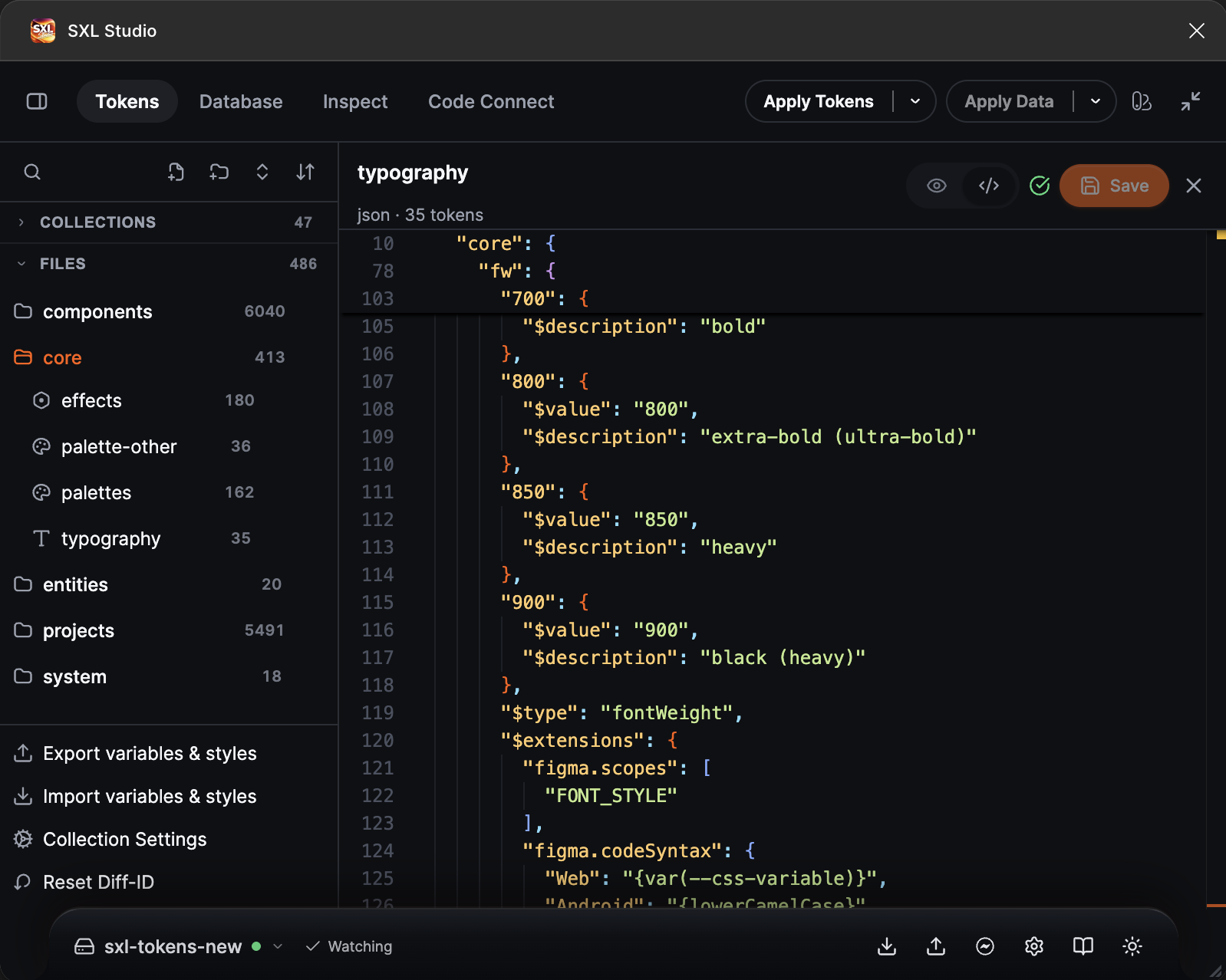
Tokens with an active Local Workspace: the footer shows the profile name with a disk icon and the Watching state.
What you need
- SXL Bridge running on this computer. Installation is described on the Bridge utility page.
- A clone of the token repository on disk. A git worktree works too. The folder must be the repository root: you enter its full path.
- The plugin in Design Mode: Local Workspace is unavailable in Dev Mode, where the code editor works through Git only.
Create a profile
A profile describes one repository folder and the relative paths to tokens and data inside it. You can have several profiles, for example one per worktree.
- Press the Sync settings gear in the footer and open the Local Workspace tab.
- Press New profile.
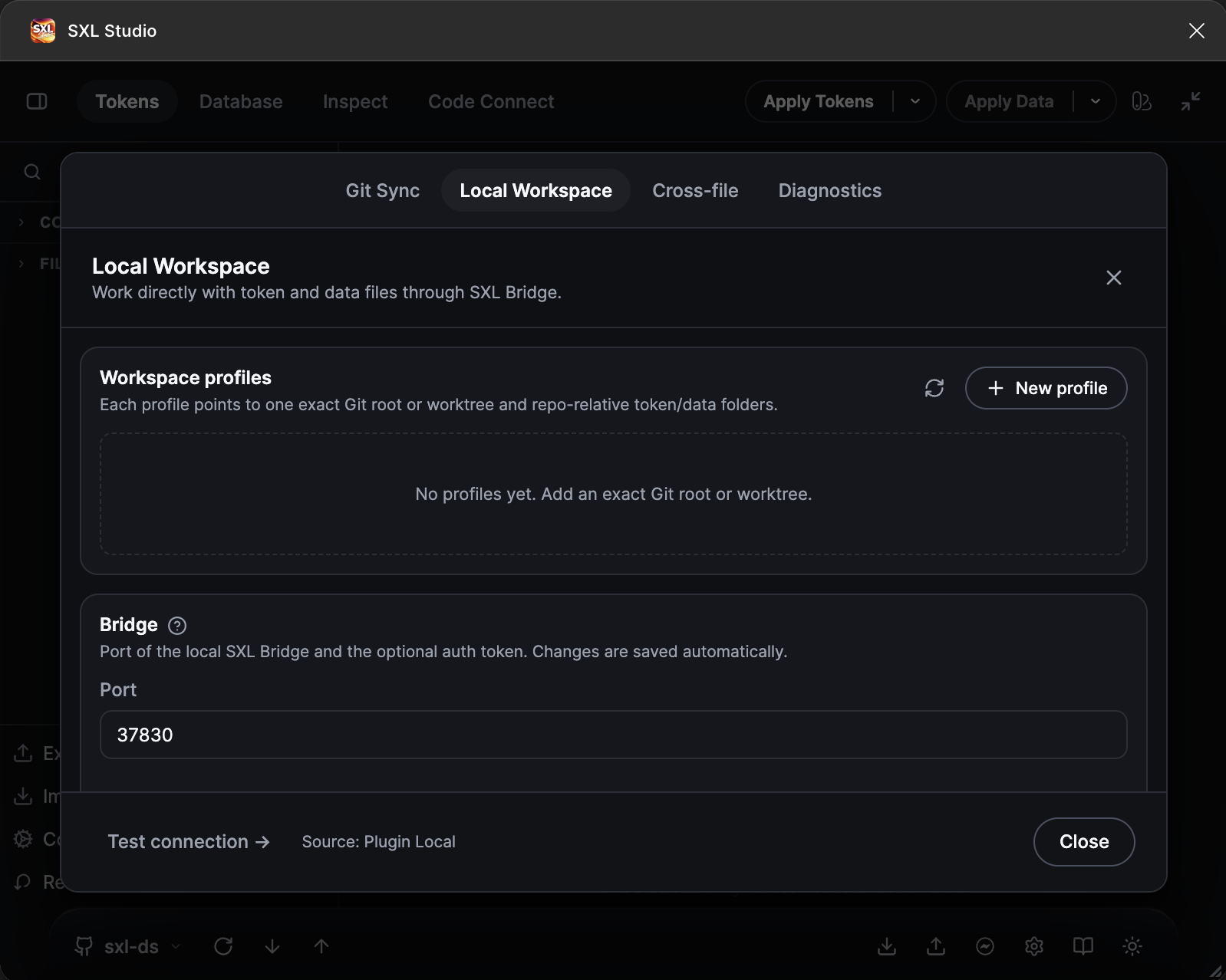
The Local Workspace tab without profiles: the list is empty, the Bridge settings are below.
- Fill in the form and press Create profile.
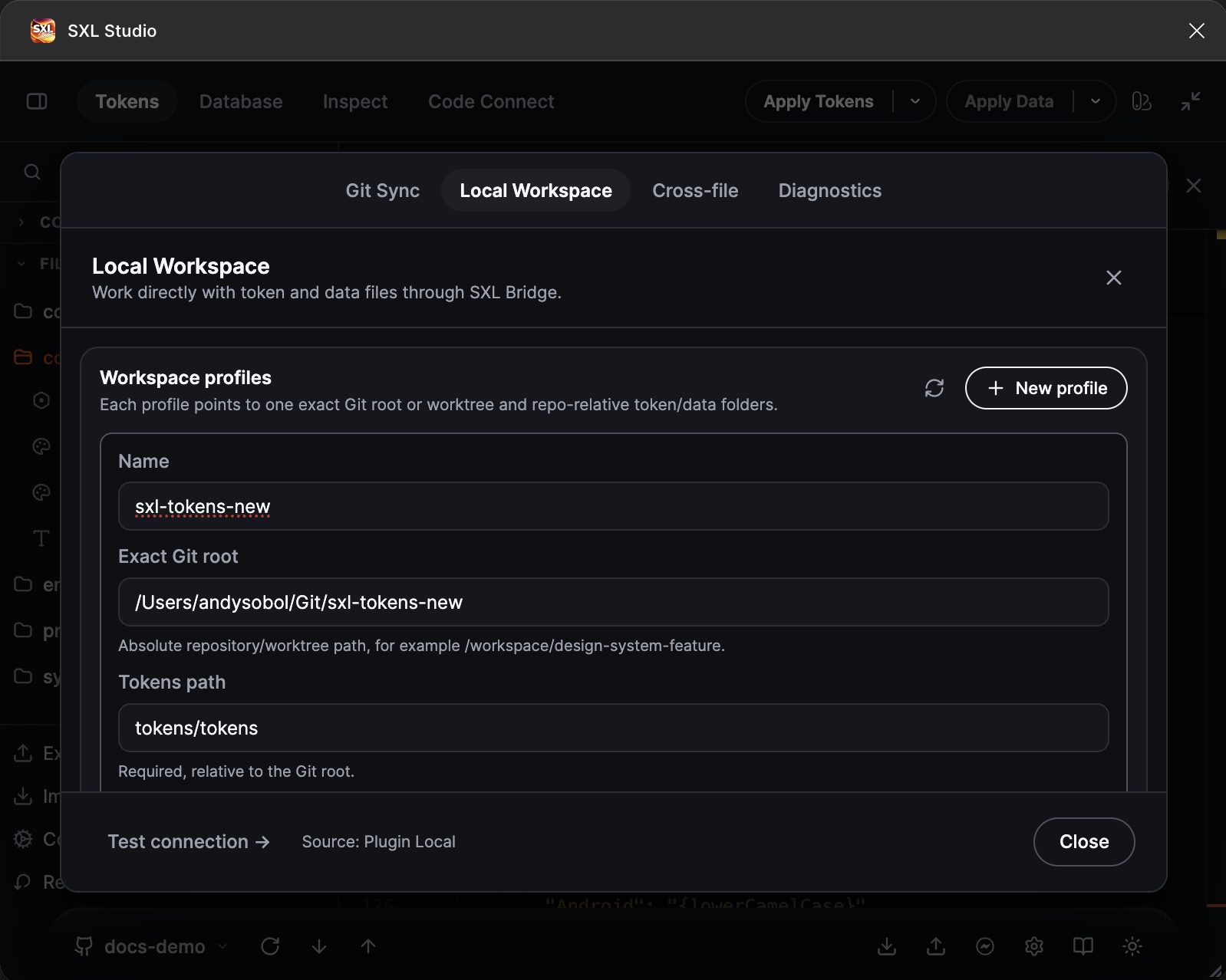
A filled-in profile: the name, the full path to the repository root and the token folder relative to it.
| Field | What to enter |
|---|---|
| Name | The profile name, shown in the footer |
| Exact Git root | The full path to the repository root, for example /Users/anna/Git/design-tokens |
| Tokens path | The token folder relative to the root, for example tokens |
| Data path | The Database data folder relative to the root. Optional |
The token and data folders must not be nested inside each other.
Next to every path field there is a folder button: it opens the system folder dialog through SXL Bridge (Bridge 1.10.0 or newer is required). The button next to Exact Git root fills in the full path, the ones next to Tokens path and Data path fill in the path relative to the root; the chosen token and data folders must be inside the Git root. If Bridge cannot open a dialog the buttons are not shown — you can always type the paths by hand.
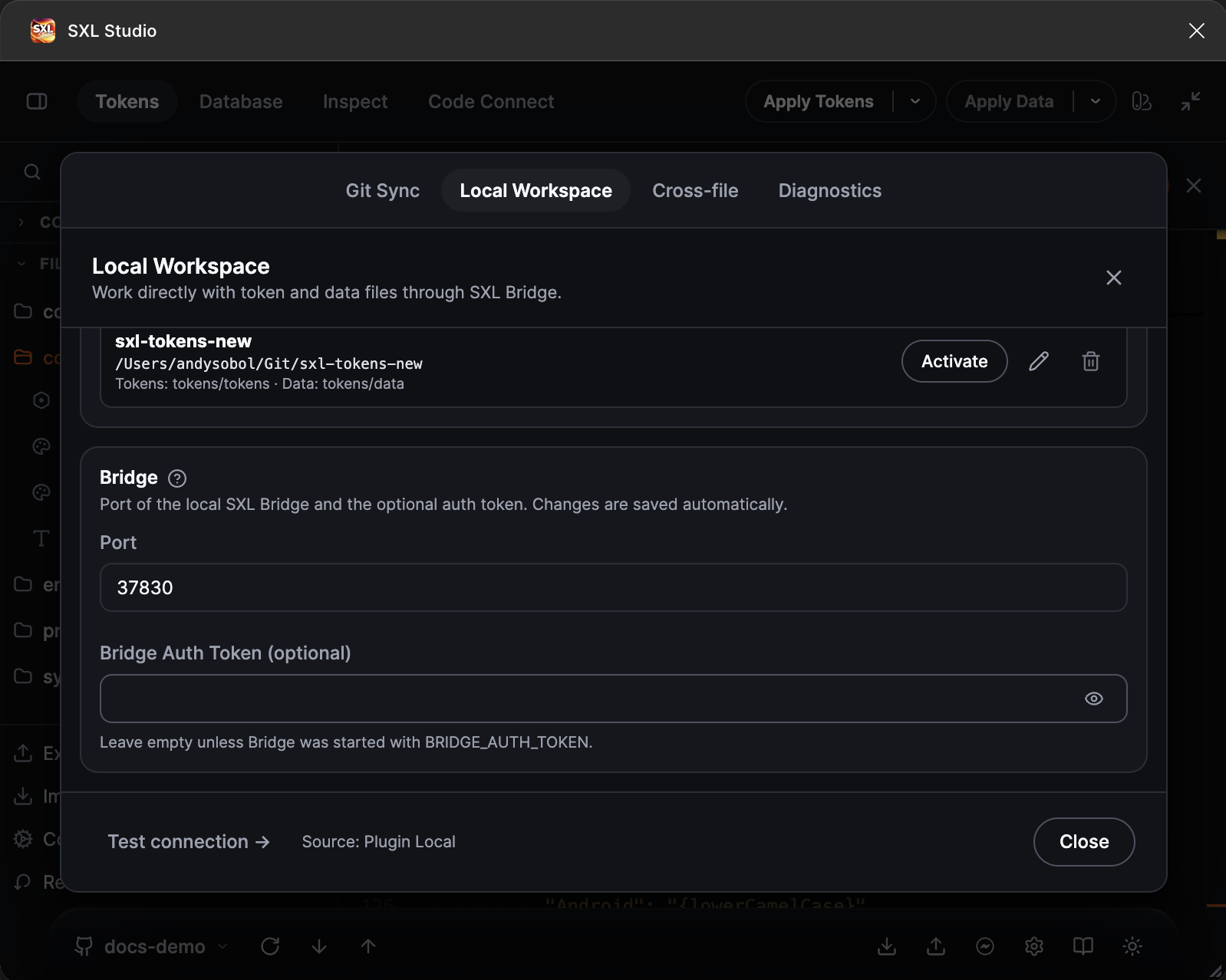
The created profile in the list: the path, the token and data folders, the Activate button. Below are the Bridge port and the optional token.
Check Bridge
At the bottom of the tab press Test connection →. On success the label Connected to SXL Bridge appears with the version number.
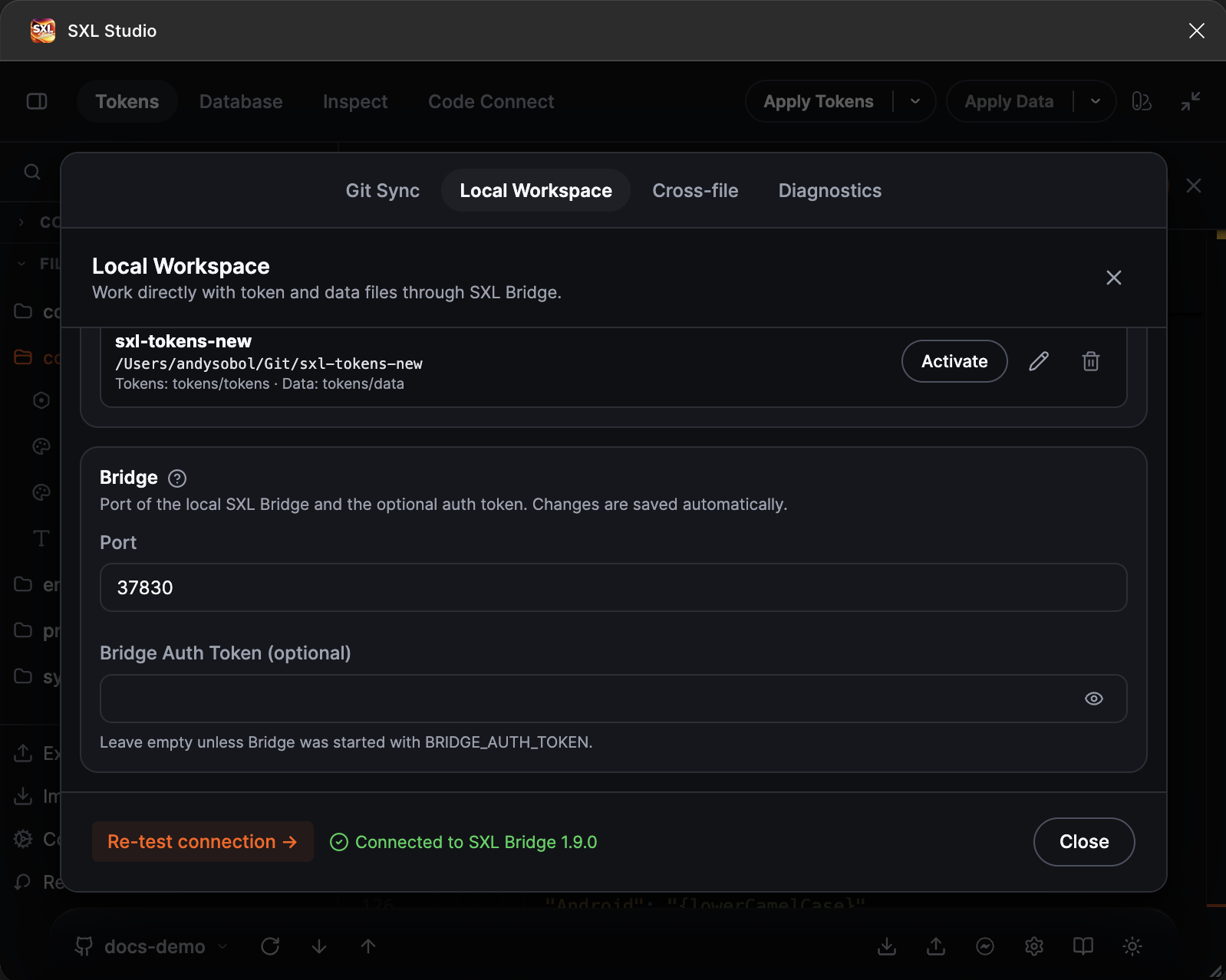
The check passed: the plugin sees Bridge on port 37830.
If Bridge does not answer, check that it is running and that the port in the Bridge section matches the Bridge port. Fill in Bridge Auth Token only if Bridge was started with the BRIDGE_AUTH_TOKEN variable. Bridge settings save themselves; there is no Save button here.
Activate the profile
Press Activate on the profile. The plugin reads the files from the folder, shows them in the tree and starts watching the disk for changes. The active profile gets the Active badge, and the footer shows the profile name and its state.
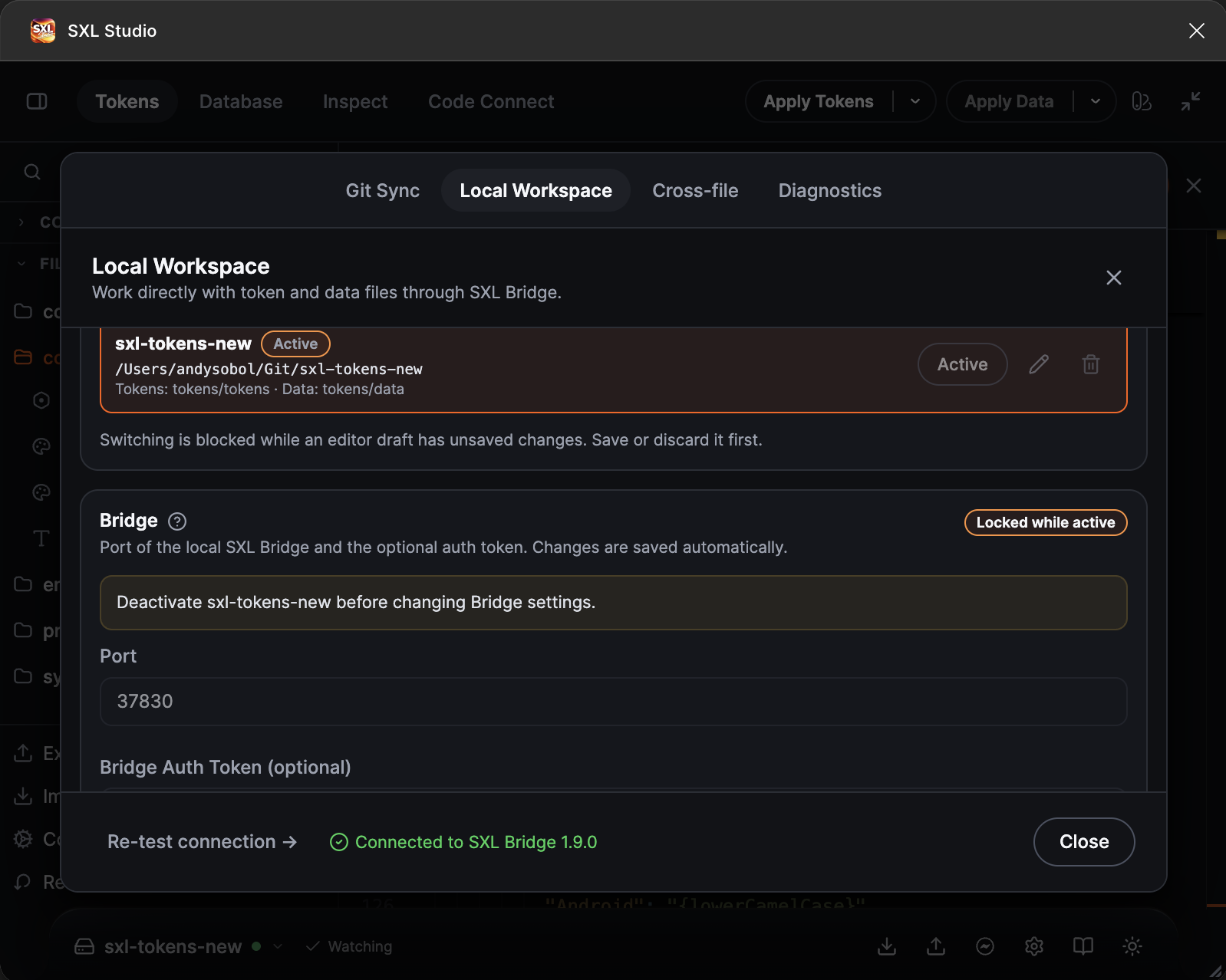
The active profile: the Active badge, the Bridge settings are locked while it works.
States in the footer and on the tab:
| State | Meaning |
|---|---|
| Watching disk | The plugin watches the folder, everything is fine |
| Refreshing from disk | Something changed on disk, the plugin re-reads the files |
| Conflict — editor draft kept | A file changed on disk while the editor has an unsaved draft. Your decision is needed |
| Reload required | The Bridge session was lost, for example Bridge was restarted. Press Reload |
| Opening workspace | The profile is opening |
The active profile can be edited in place: press the pencil, change the name or the folders and press Save and reopen — the plugin reopens the workspace from the new folders and keeps watching the disk. Saving is refused while an editor draft has unsaved changes: save or discard it first. To delete the active profile or change the Bridge settings, press Use Plugin Local first as before.
How it works day to day
- Saving a file in the plugin editor writes it to disk immediately. Pull and Push are not needed in this mode: commit and push from your Git client.
- A file changed on disk, for example from an IDE or after
git pull, is picked up by the plugin on its own: the state briefly becomes Refreshing from disk and the tree updates. - Exporting variables and styles works as usual and writes the Diff-ID service file straight into the folder.
- A branch switch in the Git client is noticed too, and the plugin re-reads the files.
Conflict with a draft
If a file changed on disk while the same file is open in the plugin editor with unsaved edits, the plugin does not overwrite anything and shows the Local Workspace conflict banner with the list of changed paths. The options:
- Discard Draft & Use Disk: drop the draft and load the disk version.
- Keep Editor: unavailable in the current version; copy what you need from the editor, then take the disk version.
Until the conflict is resolved, automatic refresh is paused and source switching is blocked.
Go back to Git or Plugin Local
Click the profile chip in the footer. The menu has Use Plugin Local and Use Git · connection name. Before switching to Git the plugin checks the connection: if the repository is unreachable because of the network, the switch still happens; if the connection is misconfigured, Local Workspace stays active and the plugin shows the reason. The same profile list is available from the menu when Plugin Local or Git is active.
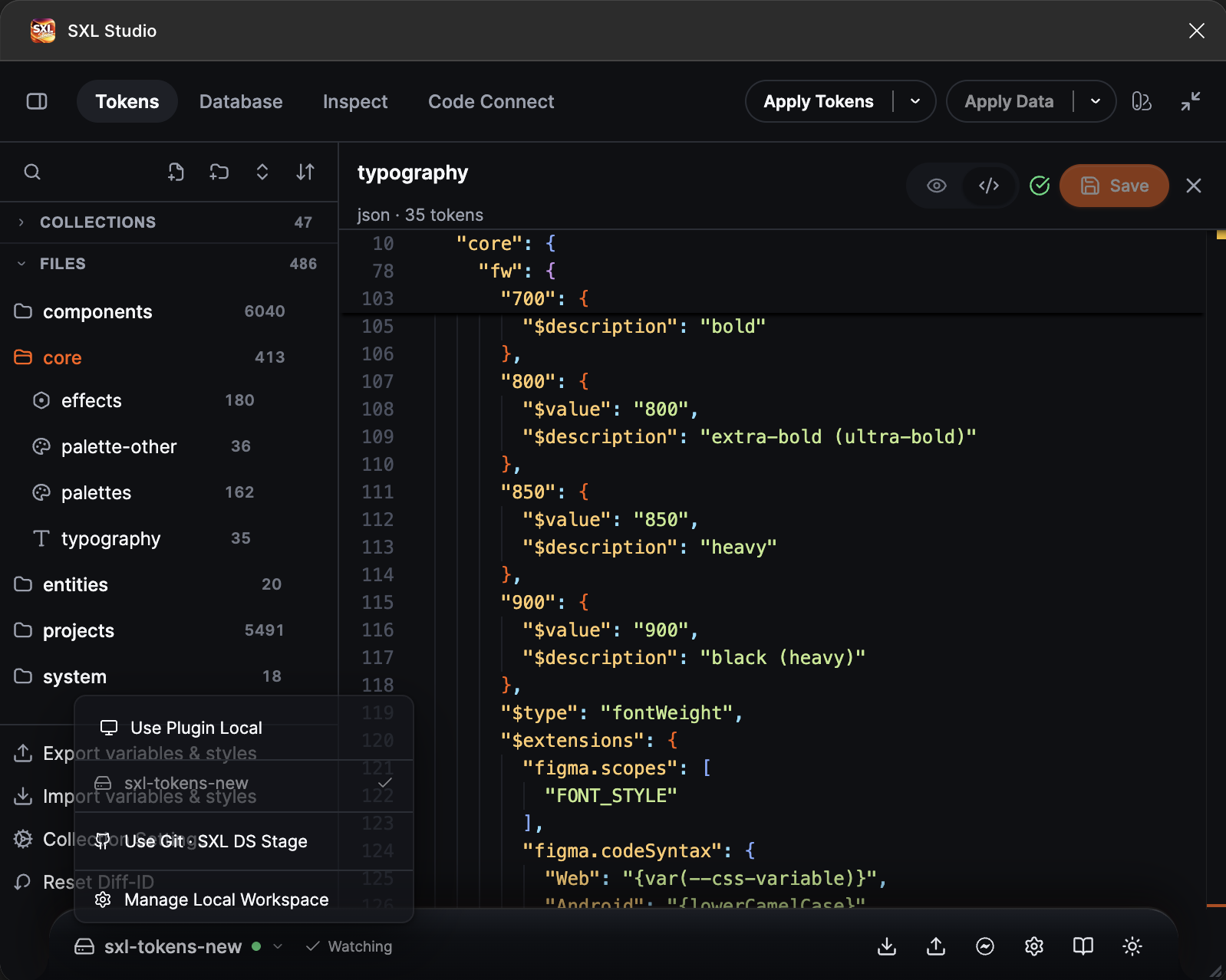
The source menu with an active Local Workspace.
Switching is blocked while the editor has an unsaved draft: save or discard the changes first.
If something does not work
| What you see | What to do |
|---|---|
| Could not reach Local Workspace Bridge on this computer | Bridge is not running or listens on another port. Start it and press Re-test connection |
| Git root must be an exact absolute path | Enter the full path from the disk root, without ~ and without relative parts |
| Unmanaged token path or Invalid JSON in … on activation | The token folder has a file with a JSON error or a file outside the described structure. Fix it in the code editor and activate the profile again |
| Reload required in the footer | Press Reload in the banner or activate the profile again |
| Local Workspace is currently read-only when saving | The write session with Bridge is not active. Activate the profile again |
| The profile does not activate in Dev Mode | Local Workspace works in Design Mode only |