Token bindings
The Token Bindings section of the Inspect tab: which layer properties are bound to tokens and variables, how to replace a token in one row with Override, and how to remove bindings from a layer, the selection or the page.
The Token Bindings section shows which tokens and variables the properties of the selected layers are bound to, and lets you change or remove those bindings one by one.
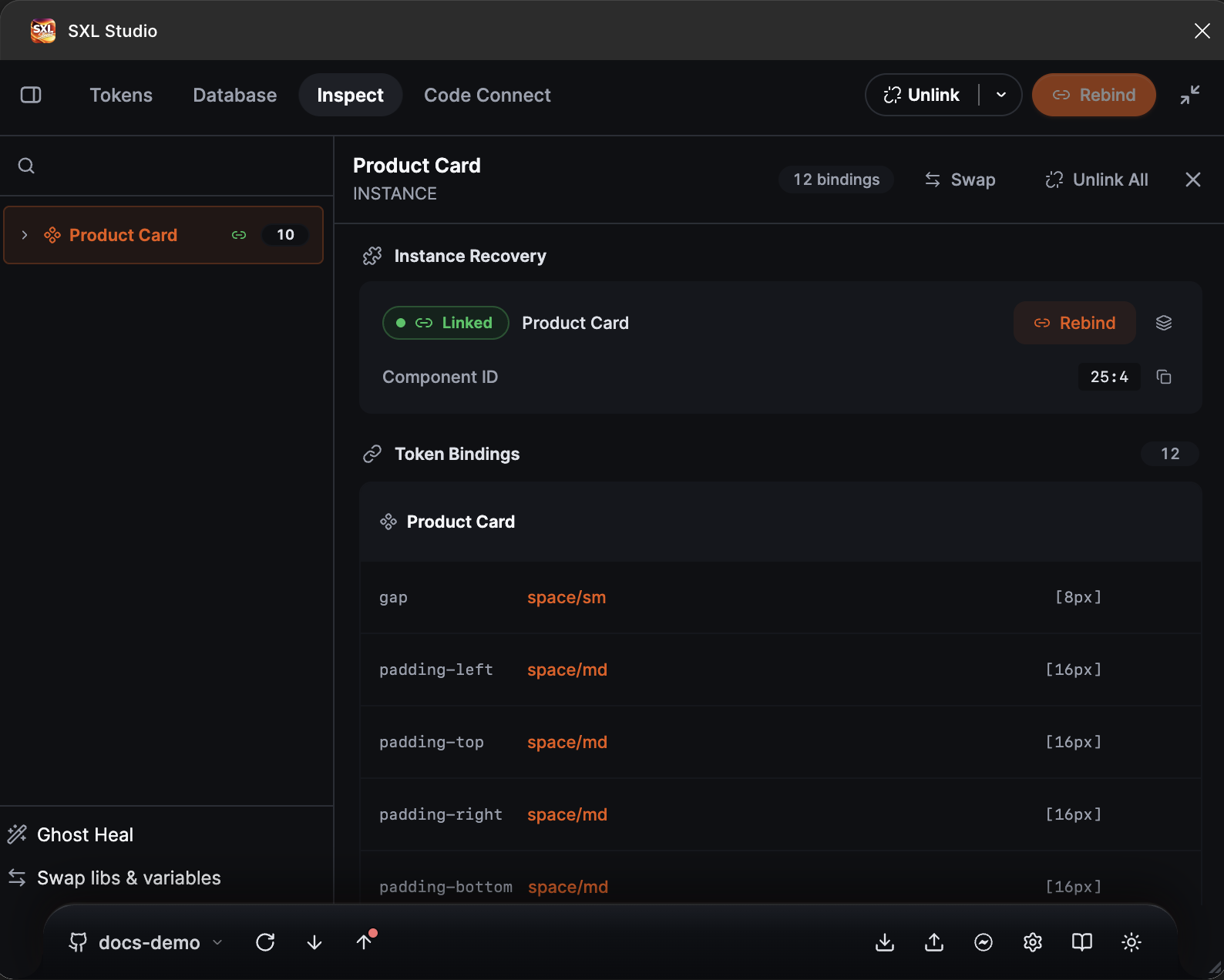
Token Bindings for a card instance: the gap and padding properties are bound to the space/sm and space/md tokens, with their values on the right.
What is shown
For every layer in the selection and its nested layers the section lists rows:
| Column | What it is |
|---|---|
| Property | fill, stroke, corner radius, gap, padding-left, font and others |
| Token | The token path or variable name, for example space/md |
| Value | The resolved value in square brackets, for example [16px] |
The plugin collects bindings from every source: those applied with Apply Tokens, native Figma variable bindings and text styles. An identical binding is shown once. For instances, bindings of the main component are taken into account when Figma does not expose them directly.
The number of bindings is visible in the panel header and in the section title.
Override: replace a token in one row
- Press Override in the binding row.
- The Override Token window shows the layer, the property and the current token. Find the new token through the search or the tree.
- Choose the action:
- Save writes the new path only into the plugin data; the layer value does not change;
- Apply writes the path and applies the token value to the layer right away.
If the new path is not found among the tokens of the active source, Apply reports an error.
Unlink: remove a binding
| Action | Where | What it does |
|---|---|---|
| Unlink in a row | The binding row | Removes the variable binding of that property and the token record |
| Unlink on a layer | The layer title inside the section | Removes all bindings of that layer |
| Unlink All | The panel header | Removes bindings in the whole subtree of the selected layer, including styles and explicit modes |
| Unlink Select, Unlink Page | The Unlink button in the plugin header | The same for the whole selection or the whole page |
Unlink has no undo button in the plugin. On large pages check the selection first: removing bindings from one layer is easier than restoring them on a whole page.
Bulk changes
Inspect works with the current selection. To rebind many layers to new tokens use Apply Tokens with the Selection, Page or Document scope on the Tokens tab, and to move variables to another collection or library use Swap.