Cross-file Sync
How to copy variable values from another Figma file: the file key, a Figma token, the per-collection comparison and applying the selected changes.
Cross-file Sync compares the variables of the current file with the variables of another Figma file and copies the values that are missing or different. It is handy when a team keeps several files with the same collections, for example a library and a project file, and needs to pull updates quickly without exporting and importing JSON.
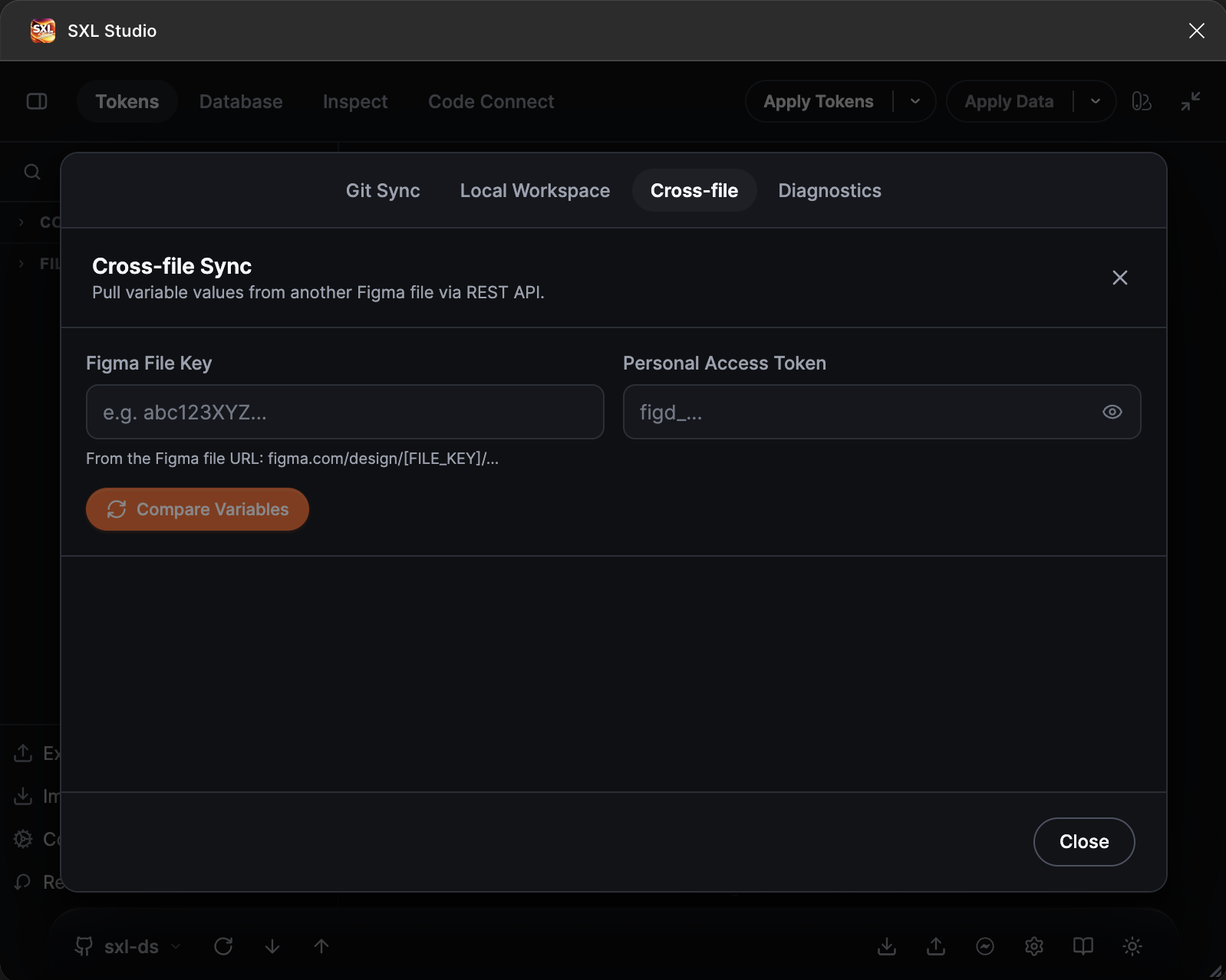
The Cross-file tab: the source file key, the Figma token and the Compare Variables button.
What you need
- The source file key. Take it from the file address:
figma.com/design/KEY/…. - A Figma Personal Access Token that can read variables. It is created in the Figma account settings and starts with
figd_. - A Figma plan. Reading another file's variables through the REST API is available only on Enterprise. On other plans the plugin shows Enterprise Plan Required.
- Access to the source file for the token owner.
How to copy variables
- Press the Sync settings gear in the footer and open the Cross-file tab.
- Paste the file key into Figma File Key and the token into Personal Access Token.
- Press Compare Variables. The plugin loads the source variables and compares them with the current file by collection name and variable name.
- Review the result: the N actionable changes found line and the list by collection. Every variable is marked New (missing in the current file), Changed (the value differs) or Removed (missing in the source). Matching variables are not shown.
- Untick the collections you do not want to copy and press Sync N variables.
- The plugin reports Created: N, Updated: M. If something could not be applied, the errors are listed under the result.
If there are no differences, the plugin shows All variables are in sync. No changes needed.
Good to know
- The values of the first mode of every collection are compared.
- If the current file has no collection of the source, the plugin creates it.
- Variables of all Figma types are copied, including Timing and Easing.
- Variables marked Removed are not deleted from the current file; they are only listed.
- While Local Workspace is active in read-only mode, applying changes is blocked.
If something does not work
| Message | What to do |
|---|---|
| Enterprise Plan Required | The variables REST API is unavailable on your Figma plan. Use JSON export and import through Git instead |
| Error mentioning 404 | Wrong file key, or the token has no access to the file |
| Compare Variables is disabled | Fill in both fields |
| Errors under the result after Sync | A variable could not receive the value, usually because the type differs. Fix it by hand and try again |