Connecting a repository
How to create a GitHub or GitLab connection in the Synchronization settings window: form fields, the Test connection check, the Fix button, activation and typical errors.
A connection stores the repository address, the branch, the token and data folders and the access token. You can have several connections, one of them is active. They all live in the Synchronization settings window on the Git Sync tab.
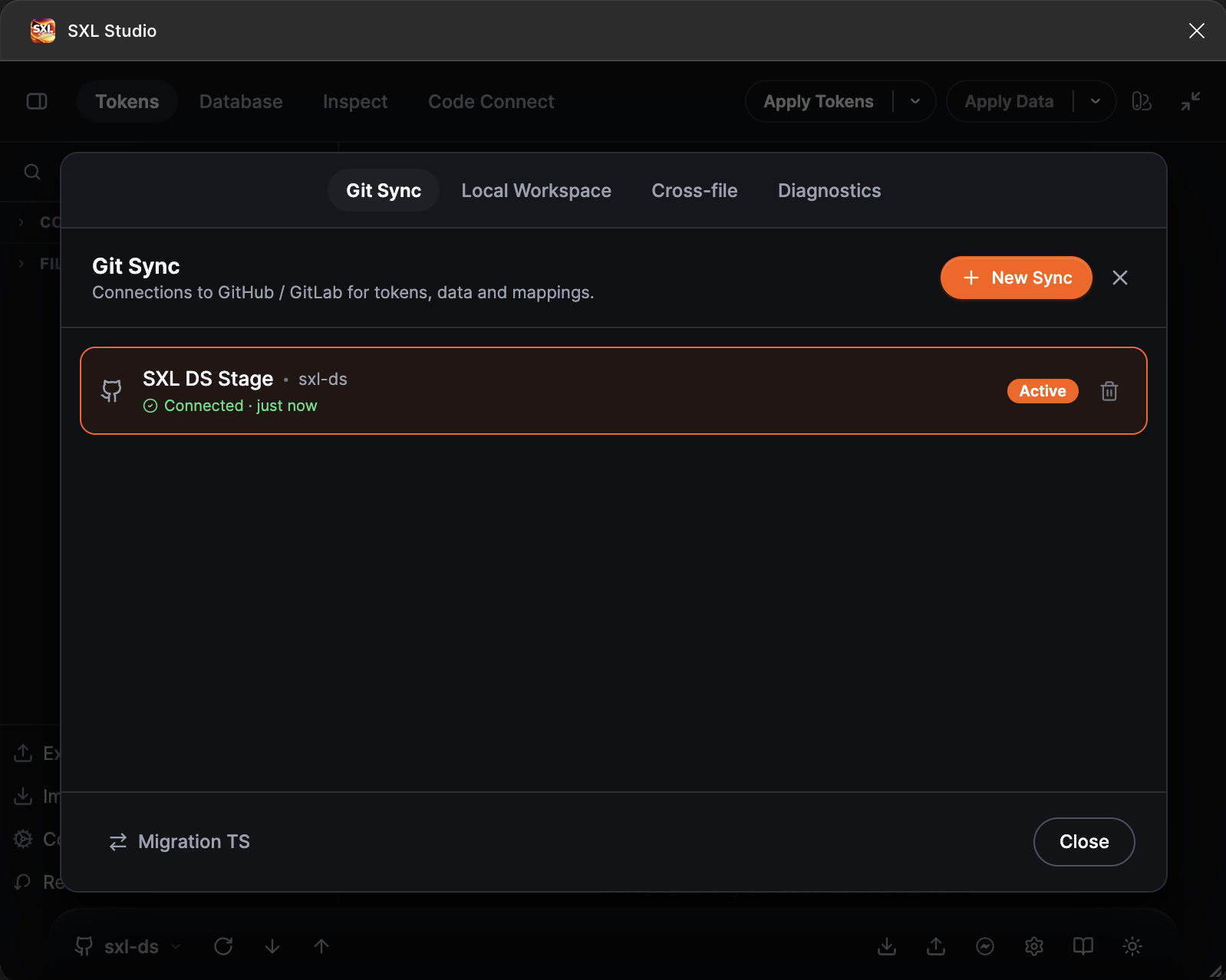
The Git Sync tab: the connection list, the New Sync button, the connection status and the Active badge.
What to prepare
- A Personal Access Token from the provider with permission to read and write repository contents: GitHub, GitLab. Without a token the plugin can only read a public GitHub repository, and Push is unavailable.
- A token folder in the repository, for example
tokens. If it does not exist yet, the plugin creates the files on the first Push, but the connection check warns that the folder was not found. - A data folder for Database if you use it. This is optional.
Create a connection
- Press the Sync settings gear in the plugin footer.
- On the Git Sync tab press New Sync.
- Fill in the form, press Test connection, press Fix if offered, then Save.
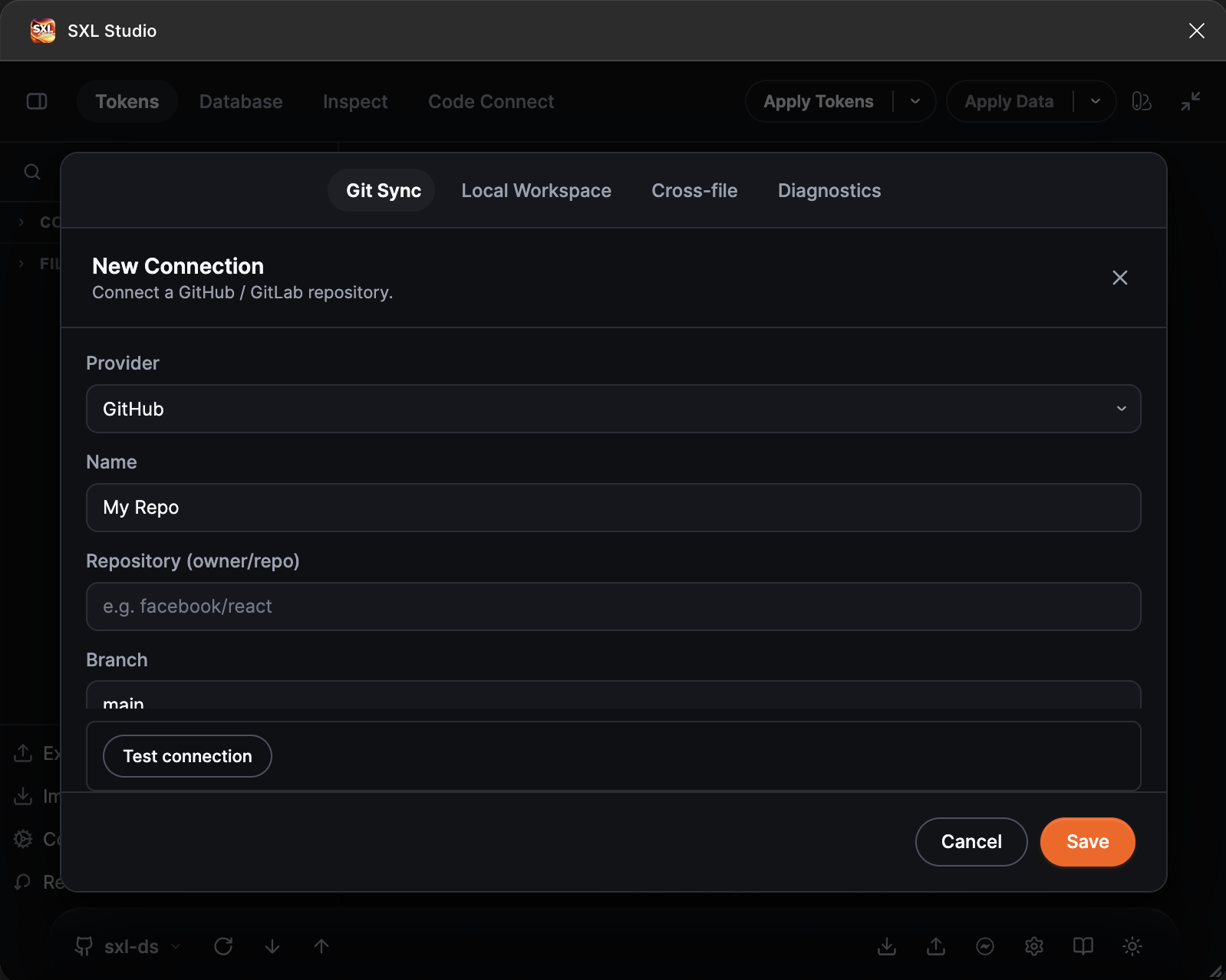
The empty New Connection form: provider, name, repository, branch.
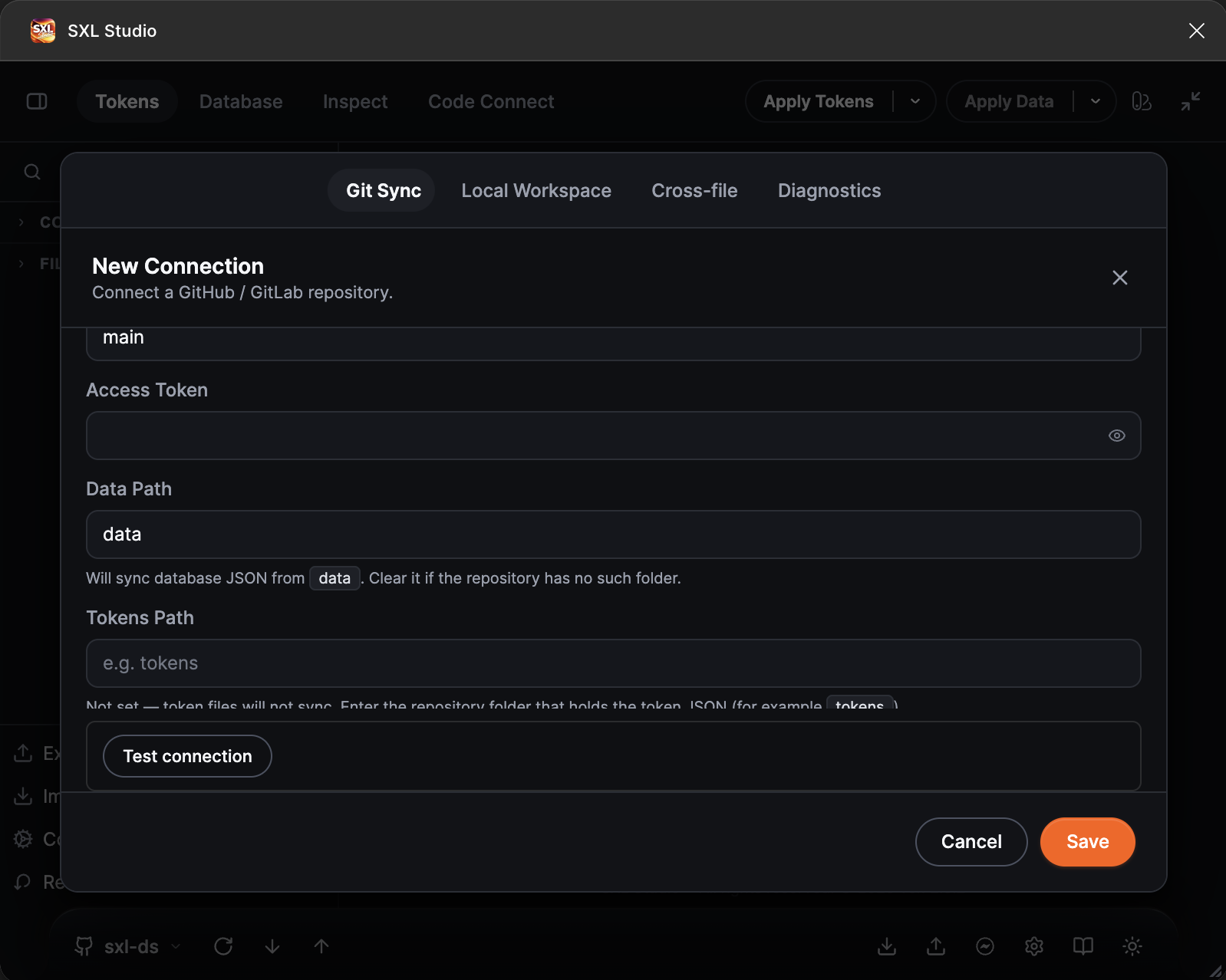
The rest of the form: the access token, Data Path with its default and Tokens Path with a hint.
Form fields
| Field | What to enter |
|---|---|
| Provider | GitHub or GitLab |
| Name | Any name, it appears in the list and in the footer menu |
| Repository (owner/repo) | The owner and the repository separated by a slash, for example acme/design-tokens. For GitLab a numeric project ID also works |
| Branch | The branch the plugin works with. Defaults to main |
| Access Token | The Personal Access Token. The value is masked, the eye icon reveals it |
| Data Path | The folder with Database files. Defaults to data. Clear the field if the repository has no such folder |
| Tokens Path | The folder with token JSON files, for example tokens. Without it token files are not synchronized |
| Figma File URL or Key (optional) | The plugin normally detects the file key itself. Fill it in only when support asks |
| Local Storage | The switch that keeps heavy files on disk through SXL Bridge. See Local Storage |
| Enterprise URL (Optional) | The address of a GitHub Enterprise Server or a self-hosted GitLab, for example https://gitlab.example.com. Leave it empty for github.com and gitlab.com |
| Code folder | Dev Mode only: the source folder for the .vue editor. The field is hidden in Design Mode |
Paths are relative to the repository root, without leading or trailing slashes. If you accidentally paste a path with backslashes, spaces or invisible characters, the form shows exactly how it read the value.
Saving needs a name, a repository and a token. Everything else can be filled in later.
Test the connection
The Test connection button at the bottom of the form runs several checks and shows the verdict Connection OK or Problems found with the time it took.
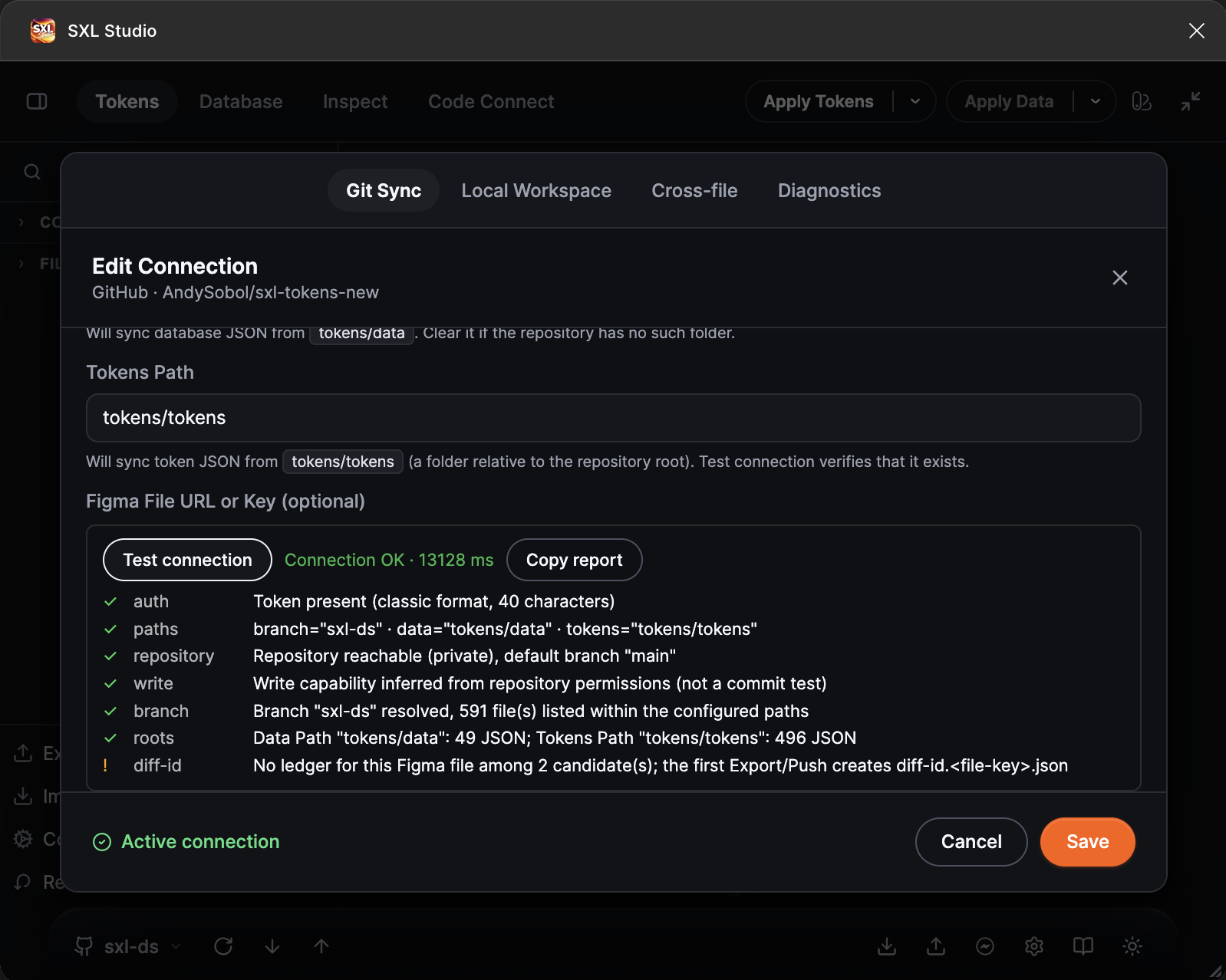
The Test connection report: token, paths, repository, write permission, branch, the folders found and the Diff-ID service file.
| Check | Meaning |
|---|---|
| auth | A token is present and looks like a token of the selected provider. The plugin warns here if the format is unknown or the token belongs to another provider |
| paths | How the plugin read the branch and the paths |
| repository | The repository is reachable, whether it is public or private, and its default branch |
| write | Whether the token can write. A read-only token makes Push fail |
| branch | The branch exists and how many files are visible in the configured folders |
| roots | The Tokens Path and Data Path folders exist and how many JSON files they hold |
| diff-id | Whether the repository has the Diff-ID service file for this Figma file. If not, it appears after the first export or Push |
| fix | The plugin found something it can correct automatically |
Copy report copies the whole report; the token is never included.
The Fix button
If the branch or the folders contain a typo, a different letter case or stray characters, the check suggests corrections and shows the Fix button with their count. It replaces the branch, Tokens Path, Data Path or Code folder with the values found in the repository and fills an empty Tokens Path with the folder that looks like the token folder. For a saved connection the corrections are saved immediately and the check runs again. For a new connection they are put into the form; press Save to keep them.
Save and activate
Press Save. If another source is active right now, the form footer shows Use Git or Set Active: it makes this connection active, and the plugin footer shows the branch name. The active connection has the Active badge in the list and the Active connection label in the form.
A connection row shows its state: Connected · just now or the time of the last check, Error when the last operation failed, and Not connected when the connection has not been checked yet.
Edit or delete
Click a connection row to open the Edit Connection form with the same fields.
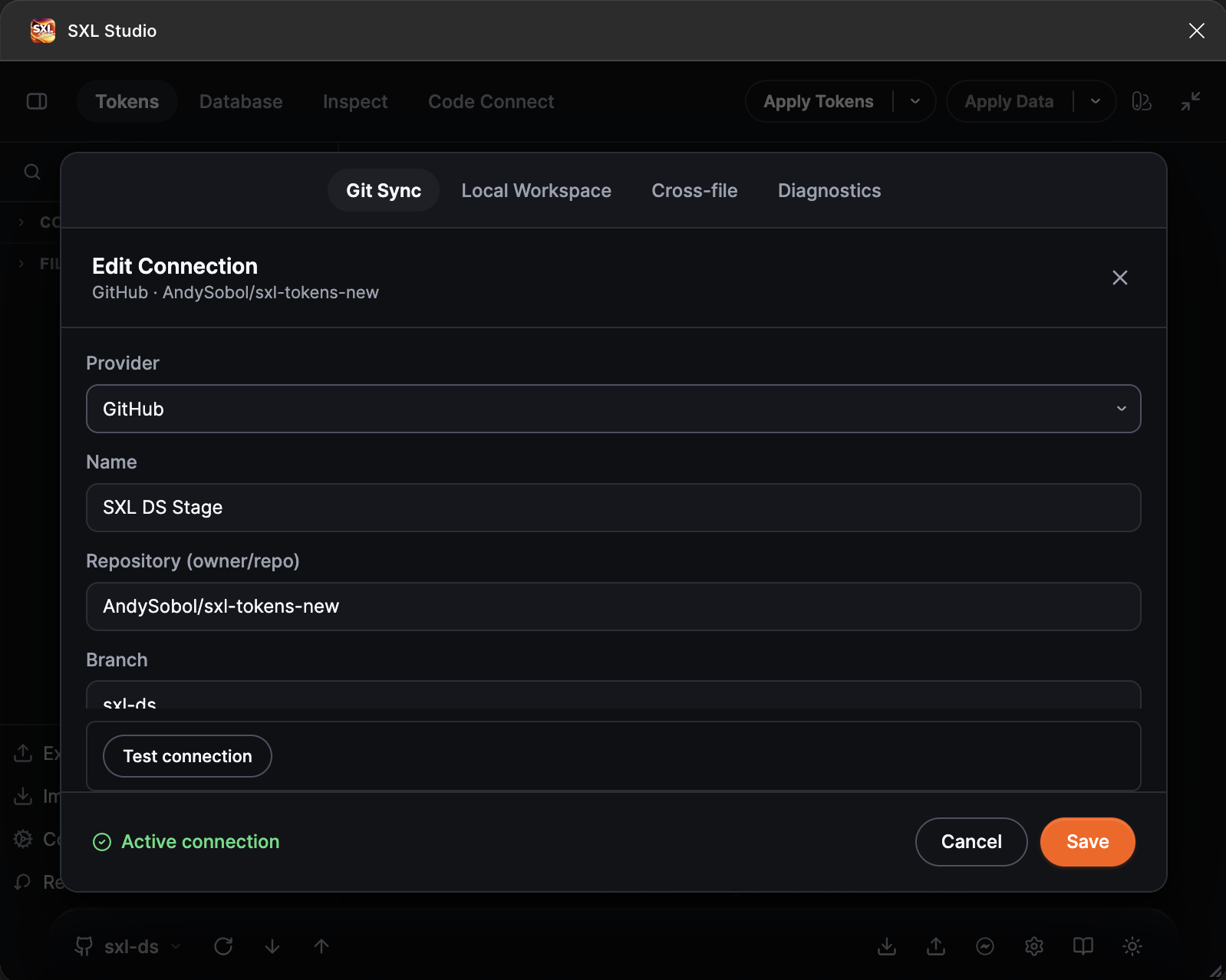
Edit Connection: provider, name, repository and branch of the active connection.
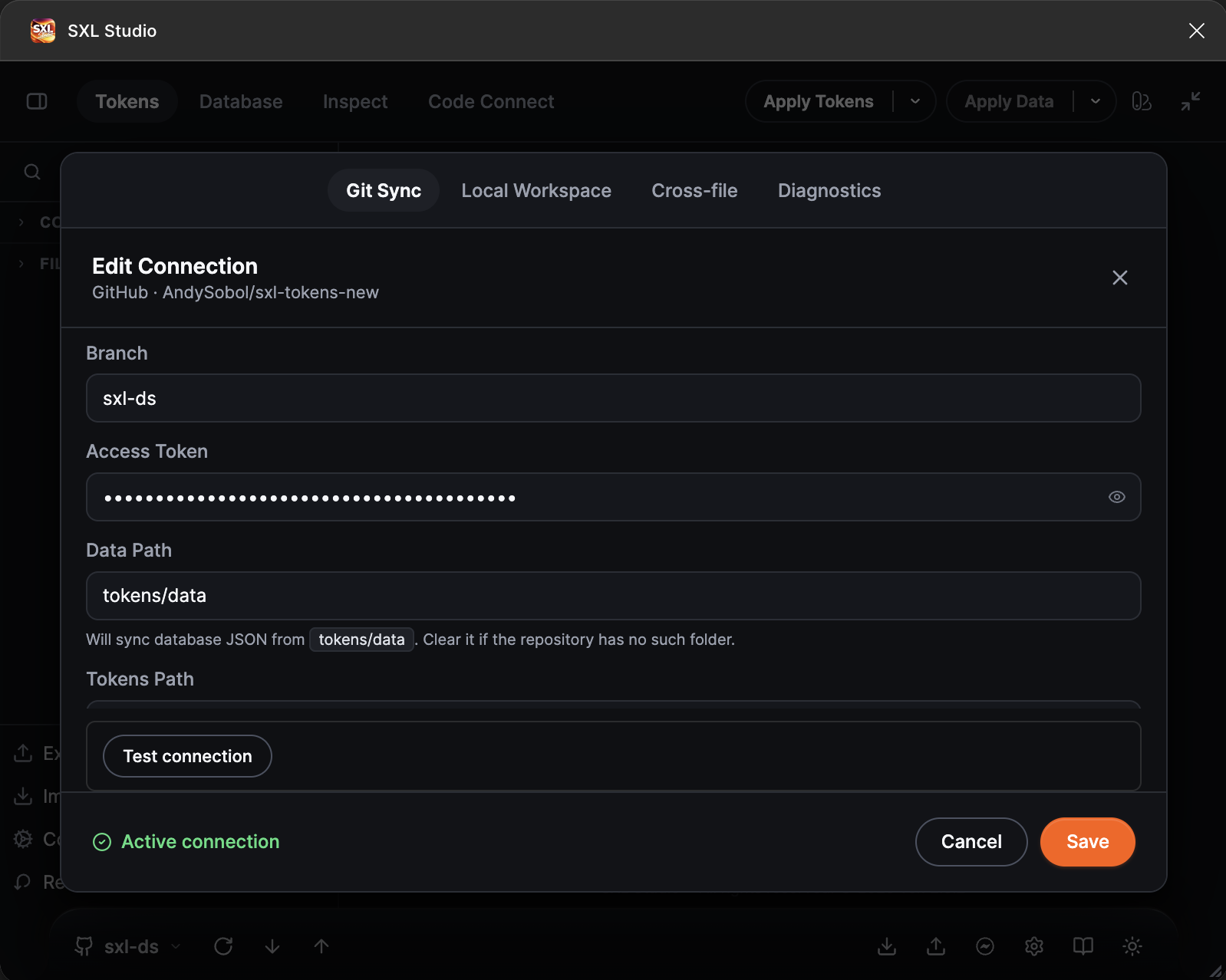
The token is masked; Data Path and Tokens Path show which folders the files are read from.
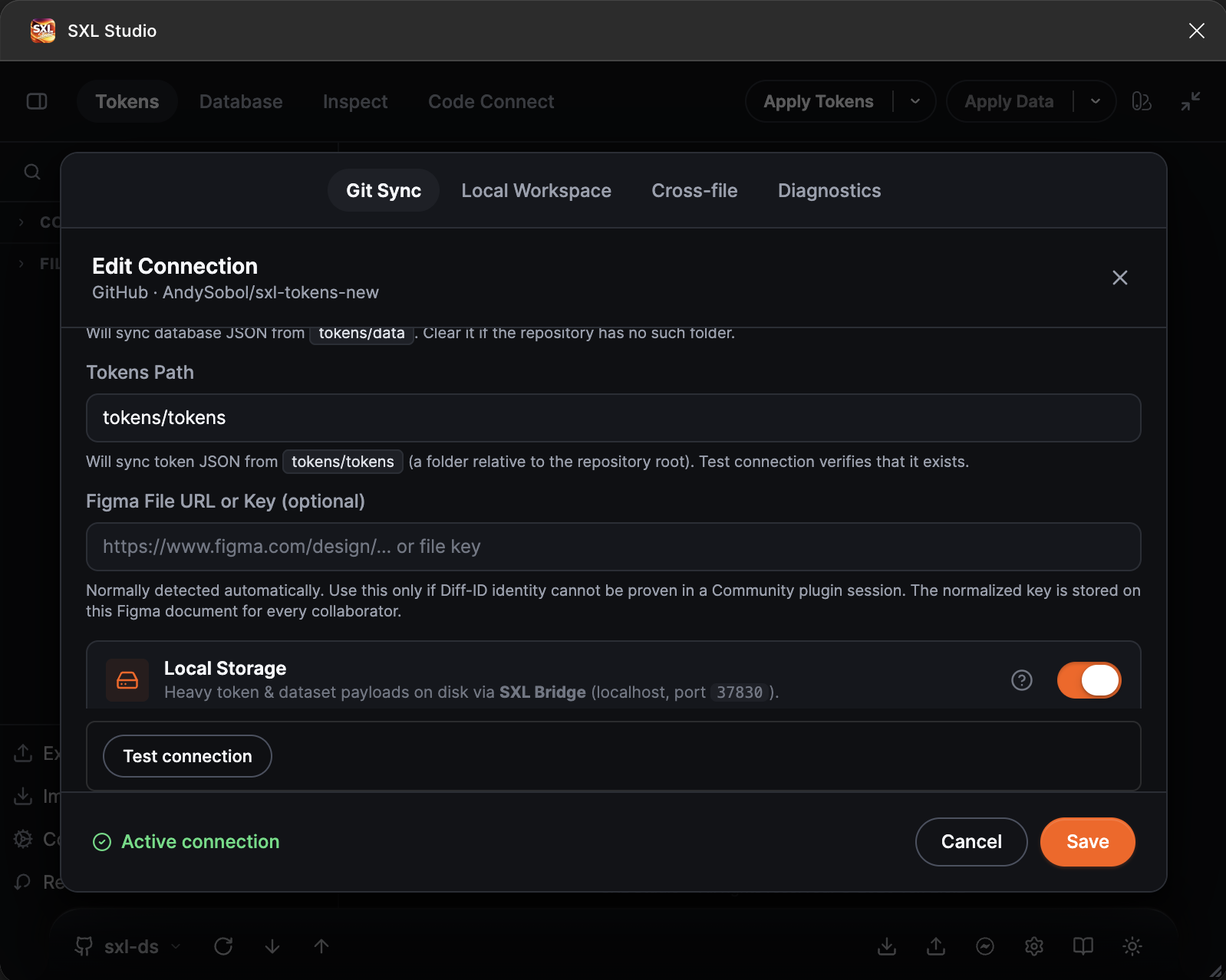
The Figma file key and the Local Storage card with the switch turned on.
The trash icon in the list deletes the connection after a confirmation. The repository files are not touched.
Typical errors
| Message | Cause and what to do |
|---|---|
| GitHub returned 404 for branch … | Wrong repository or branch name, or the token cannot see this repository. For a private repository a classic token needs the repo scope, a fine-grained token needs Contents: Read and Metadata. In SAML SSO organizations the token must be authorized for the organization |
| GitHub repository … is empty (HTTP 409) | The repository has no commits. Create the first one, for example add a README |
| Unrecognized GitHub token format | The token does not look like a GitHub token. Check that you copied it completely |
| Token has read-only access to this repository: Push will fail | The token has no write permission. Create a new one with Contents: Read and write |
| GitHub rate limit exceeded | The API request limit. This is not a token error, wait a minute and retry |
| Nothing to pull: Tokens Path not set | The token folder is missing. Enter it or press Fix if the plugin found a matching folder |
| Remote repo is too large | The provider returned an incomplete file listing. Narrow Tokens Path and Data Path down to the folders you need |
| GitLab denied access (403) | The token lacks the api scope, or the project is restricted |
For any other error open the Diagnostics tab and run test: see Diagnostics.