Database tab
How to fill designs with real data: JSON and CSV data sets, mappings to layers, images, the Apply Data button with its scope and Generate instances for lists and tables.
The Database tab links design layers with external data. Instead of filling cards, lists and tables by hand, you load data, describe which key goes into which layer and press Apply Data. For lists of many rows there is Generate instances: the plugin multiplies a template and fills every copy with its own row.
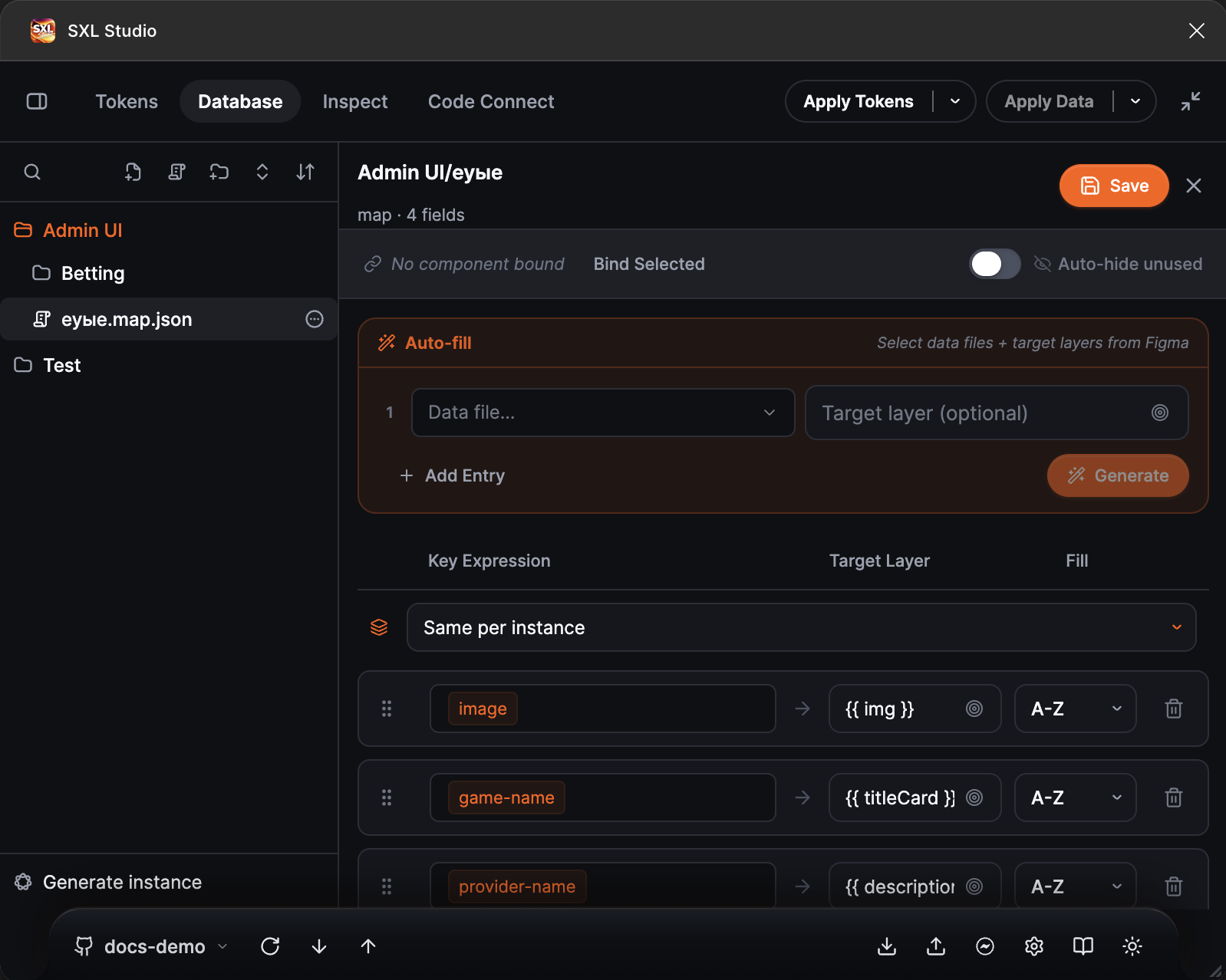
The Database tab: the data tree on the left, the mapping editor on the right with the Key Expression, Target Layer and Fill fields.
What it consists of
| File | Format | What it is |
|---|---|---|
| Data | .json or .csv | Content rows: an array of JSON objects or a CSV table |
| Mapping | .map.json | Rules: which data key goes into which layer |
| Asset | PNG, JPG, GIF, WebP, SVG | An image that can be placed into a layer |
All files live in the data folder of the source: inside the plugin, in a Git repository or in a Local Workspace folder, and are synchronized together with the tokens. See Token sources and synchronization.
What can be filled
- Text layers: text from a data key.
- Image layers: a picture from an
https://…address, an uploaded asset or a file in the repository. - Component instance properties: text, boolean and variant properties through
@propdirectives. - Layer visibility and opacity through
@node,@hide,@show. - The number of visible rows in a container through
@rows.
Work area
The sidebar shows the folder tree with data, mappings and images. Its toolbar has search, Add dataset file, New mapping, Add folder, and upload of JSON, CSV and image files from the computer. At the bottom is the Generate instance button.
The work area opens the selected file: a data set as code or a table, a mapping in the field editor.
Clicking an image in the tree places it as a fill into the selected layer.
How it works
- Create data. Press Add dataset file, type a file name with the
.jsonor.csvextension, press Enter and fill in the content in the editor, or upload a ready file with Upload. - Create a mapping. Press New mapping, type a name and add fields: the data key on the left, the target layer name on the right. The picker button takes the layer name from the Figma selection.
- Select the design in Figma: a card, a list or a page.
- Press Apply Data. The arrow next to it picks the scope: Selection by default, Page or Document. The plugin finds layers named as in the mapping and writes the values.
More about formats and keys: Files and mappings. About the rules of applying and generating: Apply Data and Generate.
Apply Data
The button in the plugin header. Its states: Apply Data before the first run, Applied afterwards, Update Data when the data changed. If the selection has no layers matching any mapping, the button is disabled with the hint Selection has no layers matching any mapping. Switch scope to Page or Document, or select a matching layer.
Generate instances
The Generate instance button at the bottom of the tree. Select an auto-layout frame or an instance that serves as the row template, choose a mapping and the number of rows: all or a limit. The plugin creates copies for every data row and fills each one. Good for product card grids, table rows and lists with real content.