Code Connect and Storybook
How to link a Figma component with its implementation files: repository settings, the full binding form on the Code Connect tab, quick binding from the Vue editor, the Storybook Integration block, the registry file for the team and what a developer sees in Dev Mode.
Code Connect links a component in Figma with the files that implement it. After binding, a developer sees documentation and code links in Dev Mode, Figma's Code panel gets tabs with the import and a usage example, and Storybook receives the component description.
What is set where
| What | Where | When |
|---|---|---|
| Repository and documentation addresses | The Repository connection button at the bottom of the Code Connect tab | Once per file |
| Full component binding | The Code Connect tab in Design mode, the form for the selected component | For every component |
Quick binding of a .vue file | The Code Connect tab in Dev Mode, the Connect button above the editor | When the file is already open in the editor |
Repository connection
| Field | What to enter |
|---|---|
| Figma file URL or key (recommended) | A link to this Figma file or its key. Needed when the plugin cannot detect the file key itself |
| Repository URL | The repository address, for example https://github.com/org/project or https://gitlab.com/org/project. File links are built from it |
| Storybook / docs (optional) | The base address of Storybook or the documentation |
These settings are stored together with the bindings and are the same for the whole team.
The full binding form
Select a component or component set in Design mode and open the Code Connect tab.
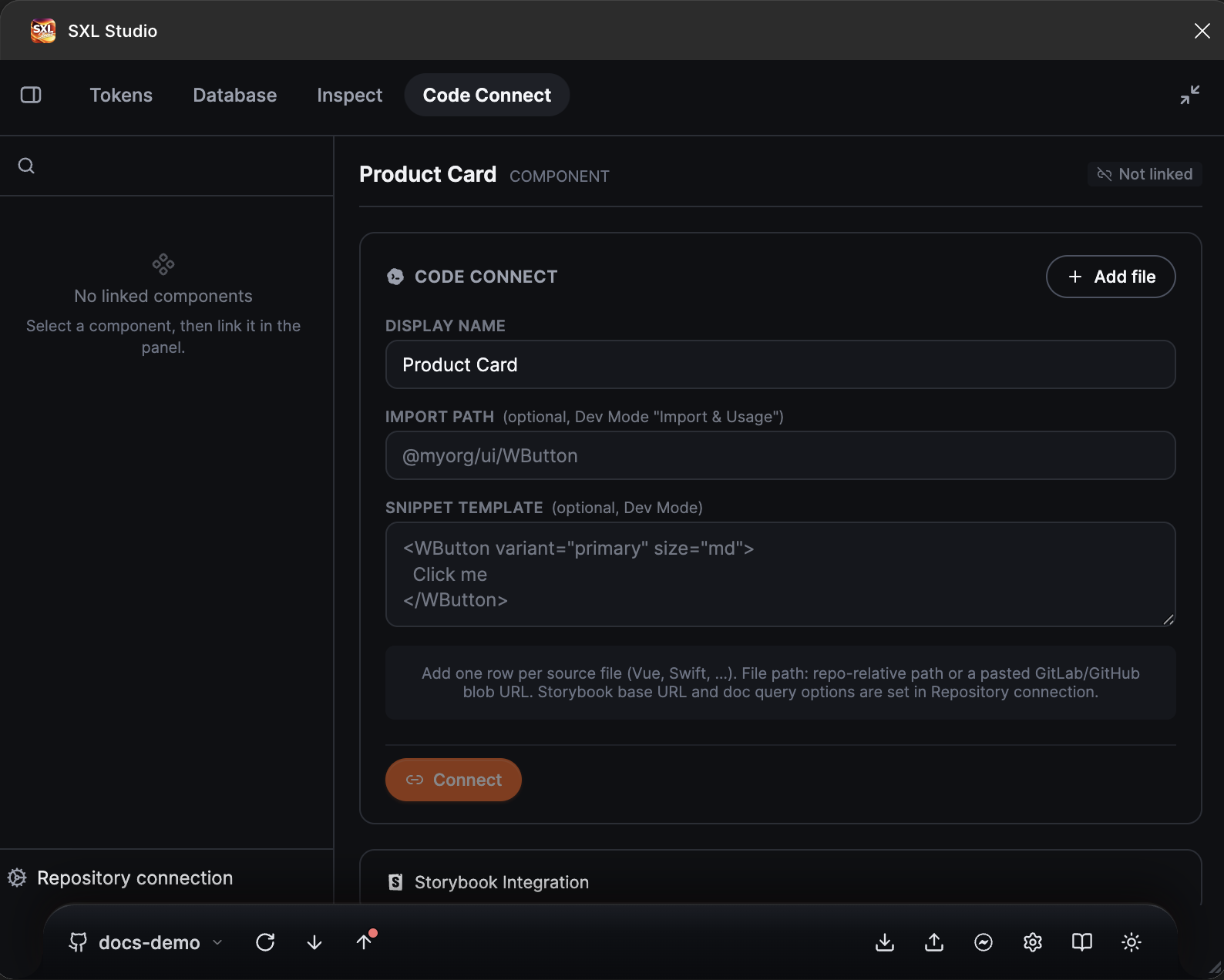
The Code Connect tab in Design: the binding form for the selected component with the Display name, Import path and Snippet template fields, the Add file button and the Storybook Integration block below.
| Field | Purpose |
|---|---|
| Display name | The component name in code |
| Import path | The import path, for example @myorg/ui/WButton |
| Snippet template | The usage example template |
| Files | The list of implementation files, the Add file button |
For every file:
| Field | Purpose |
|---|---|
| Framework | React, Angular, Vue 3, HTML, SwiftUI, Kotlin, Compose |
| File path | A repository path or a link to the file on GitHub or GitLab |
| Docs URL | The documentation page address for this file |
| Component name, Import path | Per-file overrides |
| Custom snippet | Your own usage example |
| AI instructions | Hints for an agent, for example "Always use size prop" |
Save the form. The binding goes into the registry and, if Figma allows writing, onto the layer itself.
Quick binding from the editor
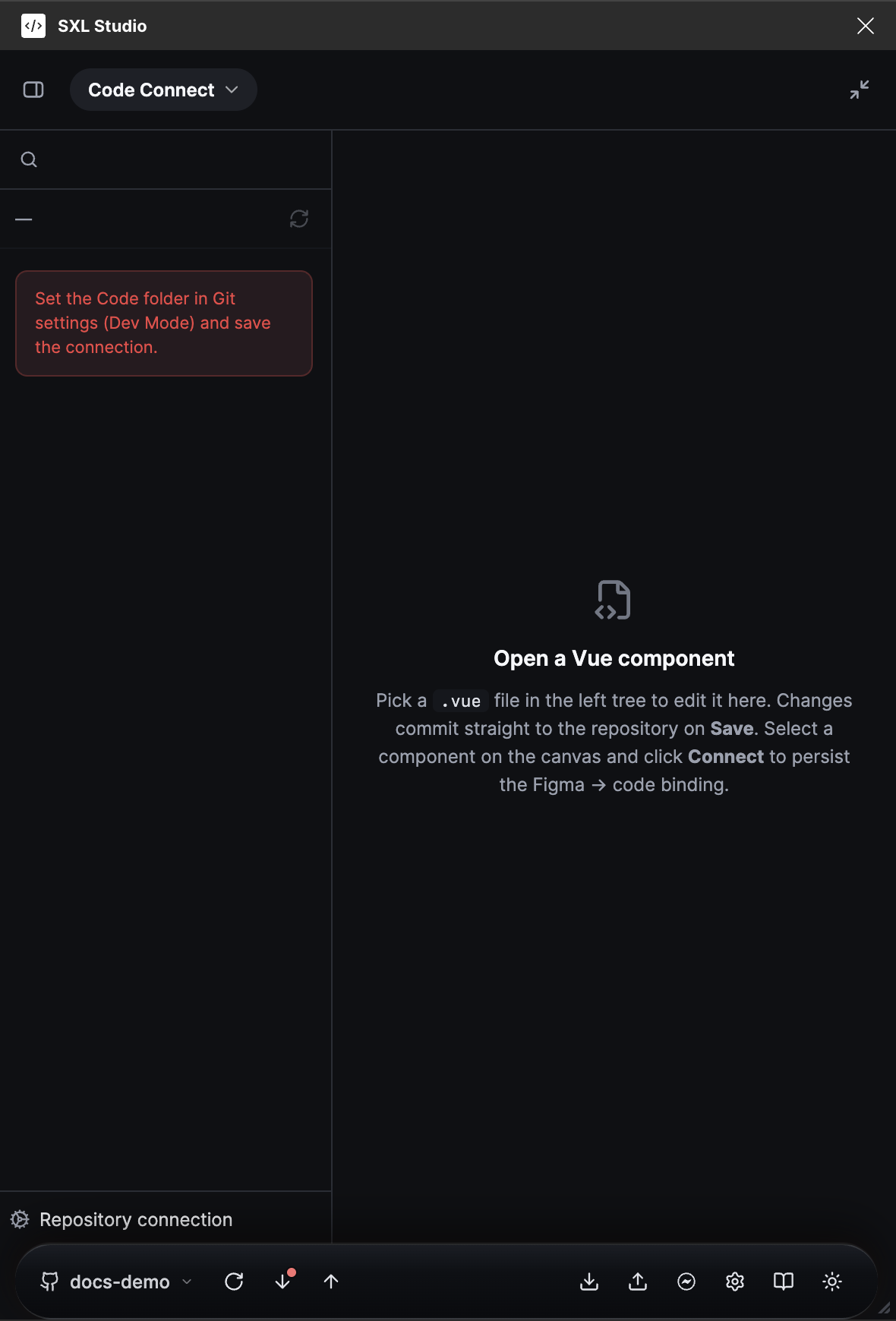
The Code Connect tab in Dev Mode: the file tree from the code folder on the left, the editor on the right. Until the code folder is set, the tree suggests configuring it in the Git connection.
- In Dev Mode open the Code Connect tab.
- In the tree on the left pick a
.vuefile. The tree reads the folder set in the Code folder field of the Git connection for Dev Mode. - Select a component on the canvas and press Connect.
A file binding is created as Vue 3. The button is disabled when no component is selected or Repository URL is not set.
Storybook Integration
A block in the same binding form. The settings are stored with the binding; nothing needs a separate export.
| Toggle | What it gives Storybook |
|---|---|
| Design Embed | The embedded Figma design |
| Composition JSON | The composition description from the chosen token file of the composition type |
| Metadata | Component properties |
| Description | A text description |
| Tokens | A mark whether the tokens are ready |
| Status | Complete, Ready for Dev, In Progress, Backlog |
Storybook reads this data through the Storybook addon.
The registry file
All bindings of a Figma file are stored in the registry diff-code-connect.<file key>.json in the token repository. It is committed together with the tokens, so the team and Storybook see the same bindings. If Figma does not allow writing data onto the layer in Dev Mode, the registry is still updated and the plugin reminds you to open the file in Design to pin the binding on the layer.
What a developer sees
- The Inspect tab in Dev Mode: the Docs and Code links.
- The file tree on the Code Connect tab: linked
.vuefiles are marked with a check. - Figma's Code panel: tabs with the import and a usage example when the component is linked.
If something does not work
| What happened | What to do |
|---|---|
| The form says Connected but the binding is not visible in the layer's Figma resources | A Dev Mode write restriction. Open the file in Design and save the binding again |
| No Code Connect tabs in the Code panel | Check that a linked component is selected and the repository settings are filled in |
| No marks on linked files in the tree | Refresh the tree and make sure the registry file exists in the active Git source. Only Vue 3 bindings are marked |
| The Connect button is disabled | Select a component and fill in Repository URL |