Database

Apply & Generate

How Apply Data and Generate Instance work: mechanics, scope, slots, auto-hide, templates, and practical scenarios.

Apply Data

Apply Data is the core Database operation. It takes data from a dataset, runs it through mapping rules, and inserts values into Figma layers.

How it works

  1. The plugin collects all mappings and builds a map: layer name → field list.
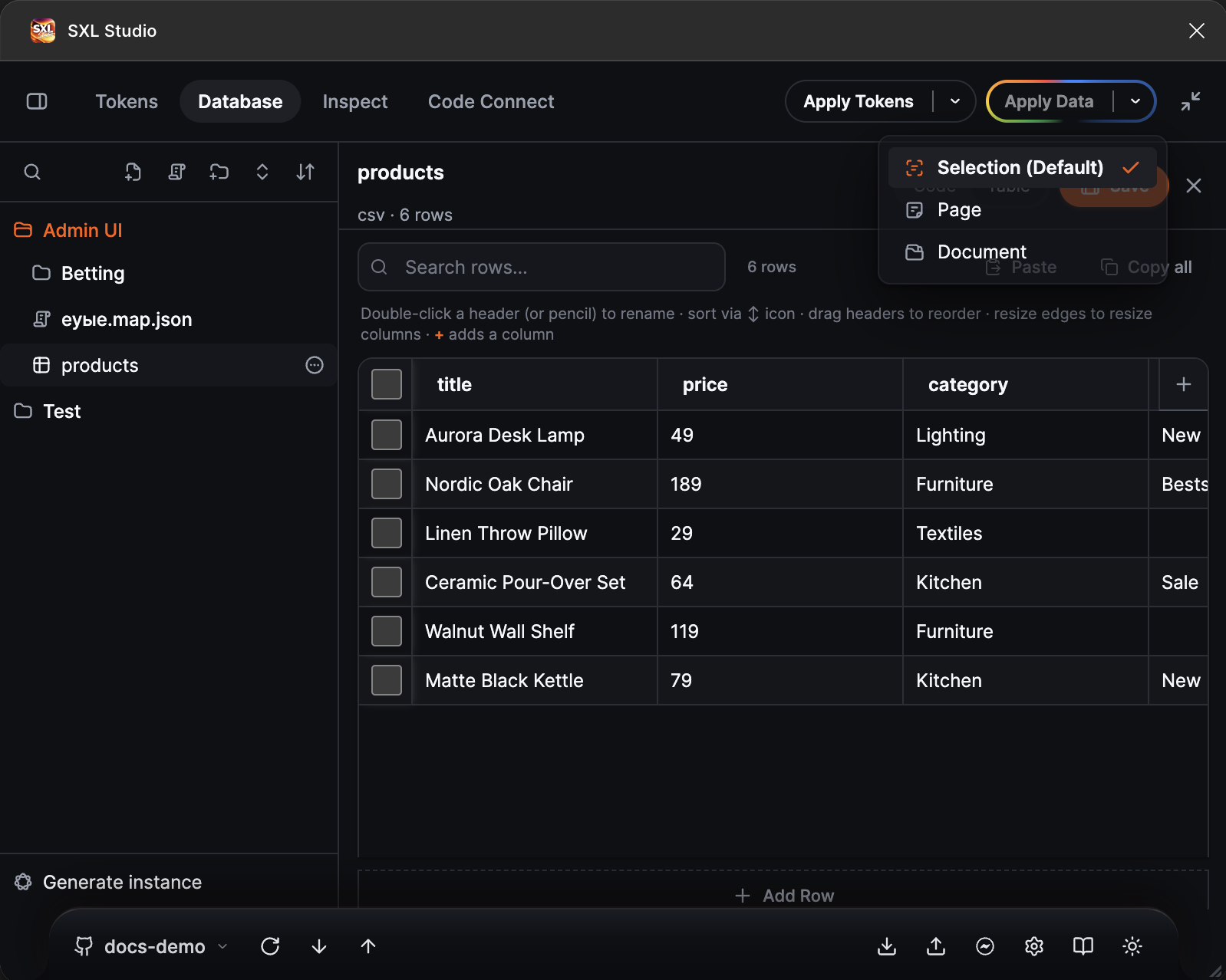
  2. Based on the selected scope (Selection / Page / Document), it finds target nodes.
  3. For each matched layer, it determines the dataset and data row based on the fill strategy.
  4. It evaluates the Key Expression and expands nested substitutions.
  5. It applies the value: text, image, directive, or boolean.
  6. If Auto-hide is enabled, untouched layers are hidden.

Scope

ScopeWhat gets processed
SelectionOnly selected objects and their child layers
PageAll matching layers on the current page
DocumentAll matching layers in the entire file

Warning: the Document scope may take significant time on large files. Use Selection for fast iteration.

Tip: with Selection scope, it's enough to select the root containers (cards, table rows). The plugin finds all target layers inside.

Field application order

When multiple fields from different mappings target the same layer, the order is:

  1. Fields with group cell/table apply first;
  2. Then fields with group cell/*;
  3. Then the rest, stably sorted by mapping ID.

What happens for each value type

Value typeTarget nodeAction
Plain textTEXTReplace characters
Image URLAny with fillDownload and apply as image fill
@prop:Name=valINSTANCESet component property
@hideAnyvisible = false
@node:visible=boolAnyControl visibility
true / false (boolean)INSTANCEControl instance visibility

Auto-hide unused

When Auto-hide unused is enabled in the mapping settings, after applying data the plugin:

  1. Finds all layers within the current instance / row shell.
  2. Layers that were not targeted by any mapping field and received no data are hidden.
  3. Layers that are mapping targets (even if data is empty) remain visible.

Tip: use Auto-hide for cards with optional elements: "Sale" badges, "Out of stock" labels, rating icons. If there's no data — the layer hides automatically.

Slot Repeater

During data application, the plugin can automatically duplicate content inside slots. This works for components with repeater logic, where a single template multiplies based on the number of rows.


Generate Instance

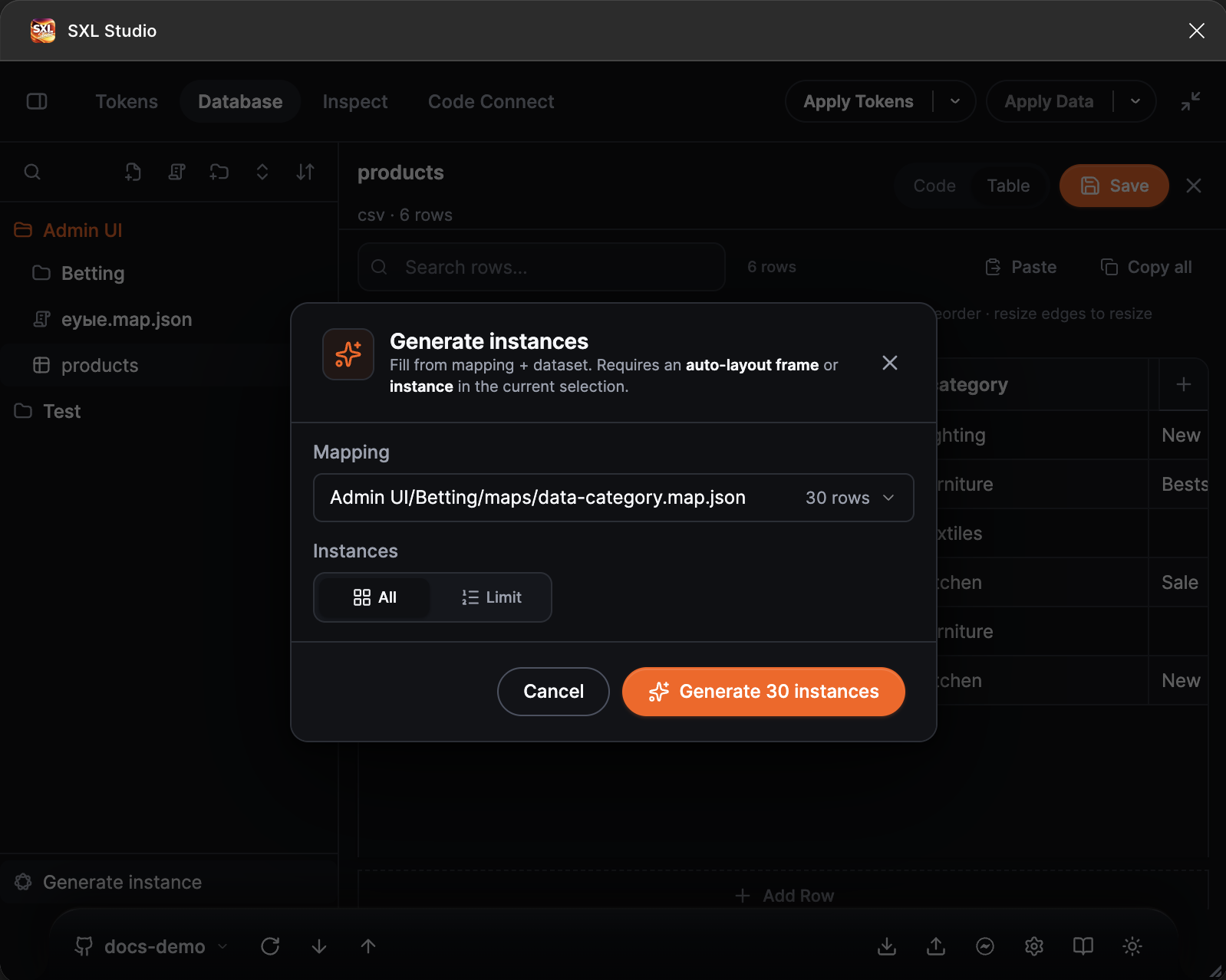
Generate Instance creates multiple component instances from a single template, each filled with a unique data row.

When to use

  • You need to quickly create 10, 50, or 100 cards with real data.
  • Fill a table or list with real content.
  • Test how a component looks with different data variations.

Preparation

  1. Create a component (or use an existing one) — this is your template.
  2. Create a dataset with data for each row.
  3. Create a mapping binding fields to the component's layers.
  4. Select an instance of the component in your design.
  5. Click Generate Instance at the bottom of the Database tree.

How generation works

Step 1: Plugin identifies the container and template
         ↓
Step 2: Removes previous generated copies
         ↓
Step 3: Preloads fonts from the template
         ↓
Step 4: Creates copies (one per data row)
         ↓
Step 5: Applies the mapping to each copy
         ↓
Step 6: Selects the generated nodes

Row count

By default, instances are generated for all rows in the dataset. If you need fewer, specify the count in the interface. The plugin will use min(specified count, dataset row count).

Two generation modes

Mode 1: Regular host (Frame / Group)

The template is the first matching child of the container (instance, frame, or component).

  • Row 1 → the existing template (updated with data).
  • Row 2 → clone of the updated template.
  • Row 3+ → each row clones the previous inserted copy.
Container (Frame)
├── CardInstance ← template (row 1)
├── CardInstance ← clone of template (row 2)
├── CardInstance ← clone of row 2 (row 3)
└── CardInstance ← clone of row 3 (row 4)

Why clone from previous rather than the template? This ensures stable internal layer IDs for Figma: each subsequent clone correctly inherits sublayer IDs from the latest instance.

Mode 2: Slot

When the template is inside a component slot, behavior adapts:

  • Row 1 → the existing instance in the slot (updated).
  • Row 2 → clone from the template.
  • Row 3+ → clone from the previous inserted row.

This lets you generate content directly inside slots while maintaining proper component structure.

Important: after slot generation, the plugin normalizes element order and cleans up "ghost" nodes — artifacts that can appear from repeated duplication.

Nested slots (tables)

For structures like WTable (INSTANCE) → rows (SLOT) → row (INSTANCE) → table (SLOT) → cell, the plugin uses row cloning (clone() + insertChild) with subsequent prop syncing and slot-children order normalization. This is the only path that is safe for Figma: creating rows via createInstance() and removing the slot's original master template previously caused the entire WTable instance to cascade-delete (see Figma API limits below).

After cloning, the plugin runs a heal pipeline: normalizes row order, refreshes node handles, and attempts to move the master-inherited "ghost" row out of the slot (via insertChild into the parent) or hide it (visible = false).

Figma API limitation: the master "ghost" row

When the row template is an instance that itself lives inside a nested INSTANCE (the classic WTable case), Figma does not allow plugins to delete the slot's master-inherited row. In the worst case, one extra visible row remains in the slot after generation — this is not a plugin bug, it's a Plugin API constraint (2026-Q2): the documented safe override properties for an instance sublayer are visible, characters, mainComponent only; forcing a delete of such a node resolves to the parent instance.

If the plugin could not move or hide that row, it shows a one-time notification — just delete it manually. All other generated rows already contain your data.

Performance

Writing TextNode.characters to a sublayer of a deeply nested instance (4–5 levels WTable → rows → row → cell → text) costs ~800–900 ms per cell on Figma's side — this is not the plugin, it's the internal file relayout. The plugin warms up all fonts in one batch and writes directly without extra retries, but we can't go below that floor: the Plugin API does not expose setBulkOverrides or a way to freeze layout.

If you need speed on large datasets (tens or hundreds of rows), use a flat FRAME/AUTO_LAYOUT as the row template instead of a nested instance table — on a flat structure a text write costs ~2 ms, not ~800 ms. The plugin will also show a notification if Apply took longer than 5 seconds, with the average time per row.

Bind component — template verification

If the mapping has Bind component set, before generation the plugin checks:

  • Is the selected template an instance of this component?
  • Does mainComponent.key match the mapping's targetComponentKey?

If not, generation is cancelled with a warning.

Cloning internals

The internal copy-creation algorithm:

  1. node.clone() — primary method.
  2. If clone() fails → refresh handle and retry.
  3. Fallback: get main component → createInstance().
  4. After creation: property sync between instances (syncInstancePropsFromReference).

Figma limitation: cloning complex instances with deep nested overrides can sometimes lose properties. In such cases, the plugin automatically recreates the instance via createInstance() and syncs props.

Apply after generation

After all copies are created, the plugin automatically runs Apply for each row:

  • Each copy receives its own row's data.
  • Composition templates ({{ }}) are expanded individually per row.
  • Other mappings (not involved in generation) are not applied automatically.

Practical scenarios

Scenario 1: Product catalog

Goal: fill 20 product cards with real data.

Dataset catalog.csv:

CSV
title,price,image,category,inStock
"iPhone 15 Pro","$999",https://cdn.example.com/iphone15.png,Phones,true
"MacBook Air M3","$1,099",https://cdn.example.com/macbook.png,Laptops,true
"AirPods Pro 2","$249",https://cdn.example.com/airpods.png,Audio,true
"iPad Air","$599",https://cdn.example.com/ipad.png,Tablets,false
"Apple Watch Ultra","$799",https://cdn.example.com/watch.png,Wearables,true

Mapping:

Key ExpressionTarget LayerFill
[title]product-nameA-Z
[price]product-priceA-Z
[image]product-photoA-Z
[category]product-categoryA-Z
[inStock]stock-badgeA-Z

Steps:

  1. Create a card component with layers product-name, product-price, product-photo, product-category, stock-badge.
  2. Place one instance in a container frame.
  3. Select the instance → Generate Instance.
  4. Result: 5 cards, each with unique data. stock-badge (Instance) is hidden for iPad Air (inStock = false).

Scenario 2: Pricing table

Goal: create a table with pricing plans.

Dataset plans.json:

JSON
[
  {
    "name": "Starter",
    "price": "$0",
    "users": "1 user",
    "storage": "1 GB",
    "support": "@prop:Type=Email",
    "badge": "@hide"
  },
  {
    "name": "Pro",
    "price": "$29/mo",
    "users": "Up to 10",
    "storage": "100 GB",
    "support": "@prop:Type=Priority",
    "badge": "@prop:Visible=true;Label=Popular"
  },
  {
    "name": "Enterprise",
    "price": "Custom",
    "users": "Unlimited",
    "storage": "Unlimited",
    "support": "@prop:Type=Dedicated",
    "badge": "@prop:Visible=true;Label=Custom"
  }
]

Steps:

  1. Create a pricing row component with the appropriate layers.
  2. Select the instance → Generate Instance.
  3. Result: 3 rows. Starter badge is hidden, Pro has "Popular", Enterprise has "Custom". Support type is controlled via the Type prop.

Scenario 3: Design system prop showcase

Goal: display all button states.

Dataset button-states.json:

JSON
[
  { "button": "@prop:Size=Large;Variant=Primary;Disabled=false", "label": "Submit" },
  { "button": "@prop:Size=Large;Variant=Secondary;Disabled=false", "label": "Cancel" },
  { "button": "@prop:Size=Small;Variant=Primary;Disabled=true", "label": "Disabled" },
  { "button": "@prop:Size=Small;Variant=Ghost;Disabled=false", "label": "Learn more" }
]

Mapping:

Key ExpressionTarget LayerFill
[button]ButtonA-Z
[label]button-labelA-Z

Generation creates 4 button instances, each with a unique combination of Size, Variant, and Disabled.


Tips and warnings

Layer naming: give layers unique, descriptive names. text-1, text-2 — bad. product-title, product-price — good. This simplifies mapping and reduces errors.

Test on a small selection: before applying to an entire page, test the mapping on one or two elements with scope Selection.

Fonts: before generation, ensure all fonts used in the template are available. The plugin preloads fonts, but if a font is unavailable, text layers may not update.

Nested instances: when generating from a complex component with deeply nested overrides, enable Bind component to verify template integrity.

Performance: generating 100+ instances with images may take time. Figma limits image download speed. For large volumes, consider splitting the operation into several batches.

Flat template vs nested instance table: for large datasets (>50 rows) a FRAME/AUTO_LAYOUT row template is filled hundreds of times faster than a row inside a nested WTable → rows → row. This is a Figma Plugin API limit, not a plugin issue: writing text on a sublayer of a deeply nested instance costs ~800 ms per cell. If you don't specifically need an instance-based table, use a flat list.